
What this covers: Creating a Weather asset — a smart asset that displays live local weather, styled with your own colors. A smart asset is content Screenfluence generates for you from settings you choose.
Before you start: None — just know which location's weather you want to show.
Steps
- Click Library in the left sidebar, then the green New Asset button.
- In the New Asset window, click Get Started under Create a Smart Asset.
- Select Weather ("Display live local weather on your screens. Pick a location, temperature units, and colors.") and continue.
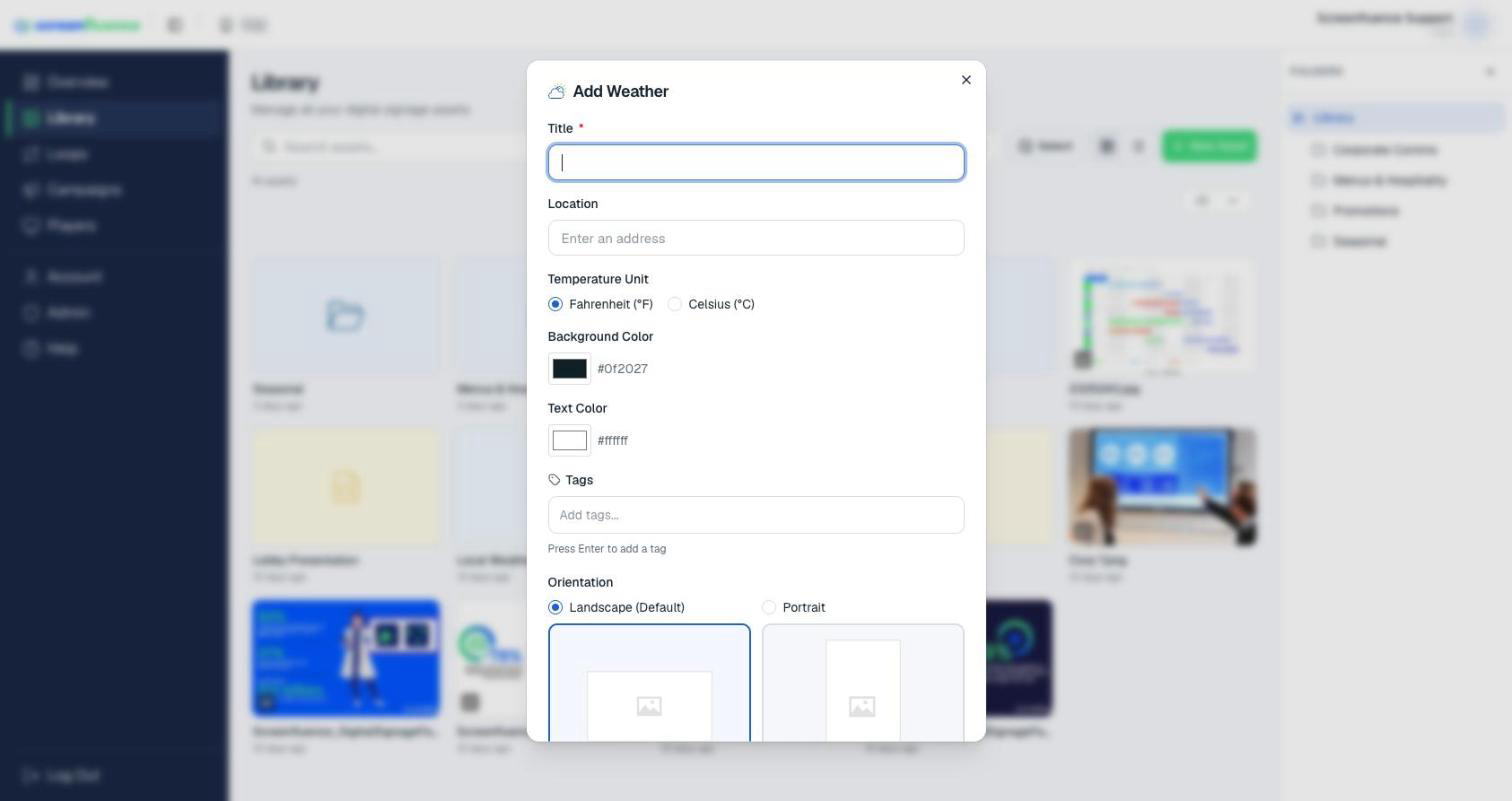
- In the Add Weather window, fill in:
- Title — a name for this asset in your Library.
- Location — start typing ("Enter an address") and pick from the suggestions. You must pick from the list — that's how the asset pins the exact spot.
- Temperature Unit — Fahrenheit (°F) or Celsius (°C).
- Background Color and Text Color — match the look to your brand.
- Click Create. The asset appears in your Library, ready to drag into a loop (see How to build a loop).
Tips & good to know
- The weather updates itself — set it once and it stays current.
- A weather slide works well as a short slide (a few seconds) between your promotional content.
Troubleshooting
- The location won't accept: typing an address isn't enough — click one of the suggestions in the dropdown so the location locks in.