
What this covers: The two ways to add content to your Library — uploading your own media files, or creating a smart asset — and what each asset type does. An asset is any piece of content you can put on screen. Your Library is where all of your assets are stored.
Before you start: None.
The two kinds of assets
- Media you upload — your own images and videos. See Upload images and videos.
- Smart assets — content Screenfluence generates for you from another service or from settings you choose, such as a website, a Google Slides presentation, or a live weather display.
Steps
- Click Library in the left sidebar.
- Click the green New Asset button in the top-right corner.
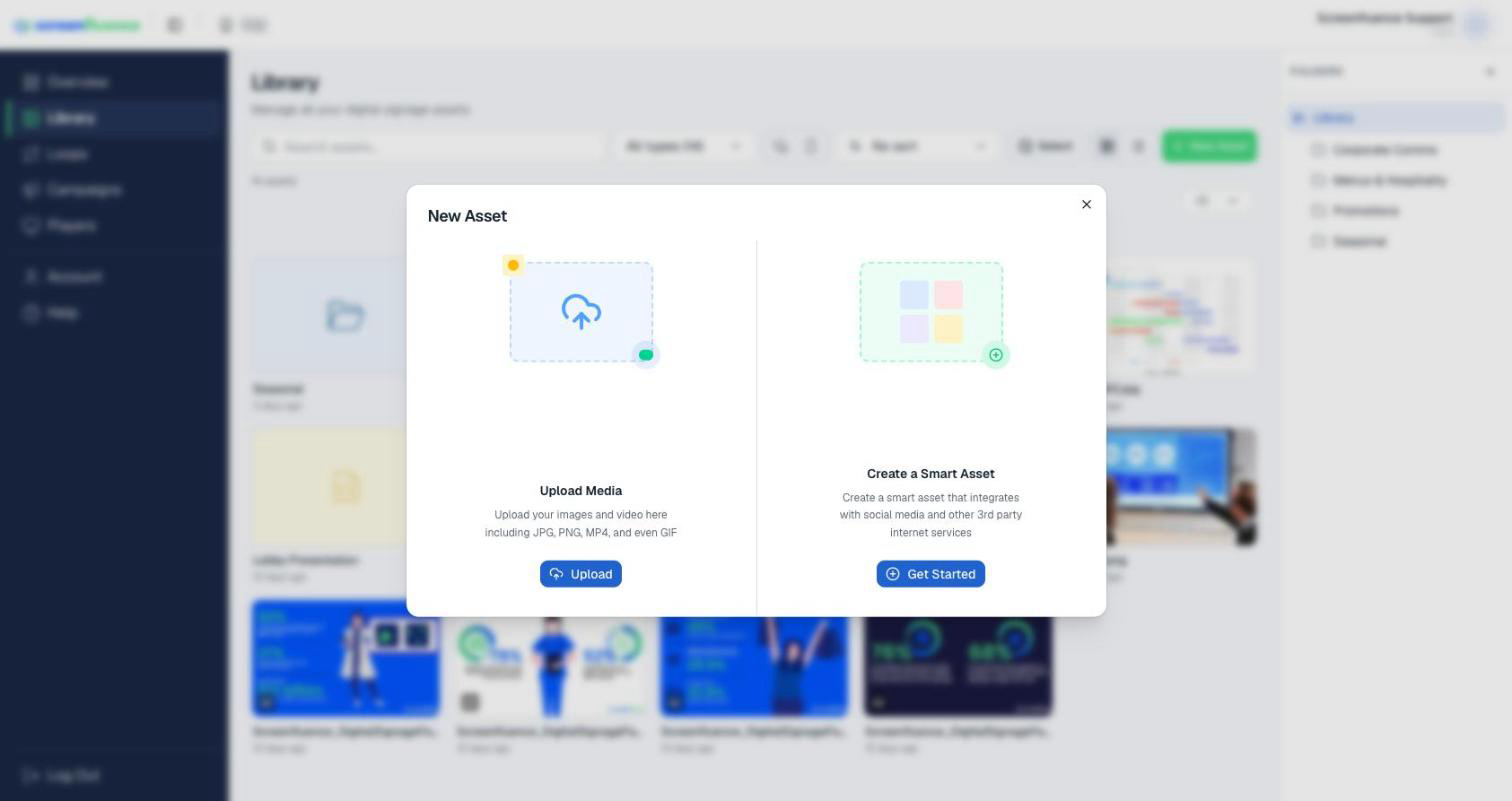
- In the New Asset window, choose one of the two panels:
- Upload Media — "Upload your images and video here including JPG, PNG, MP4, and even GIF". Follow Upload images and videos.
- Create a Smart Asset — "Create a smart asset that integrates with social media and other 3rd party internet services". Click Get Started.
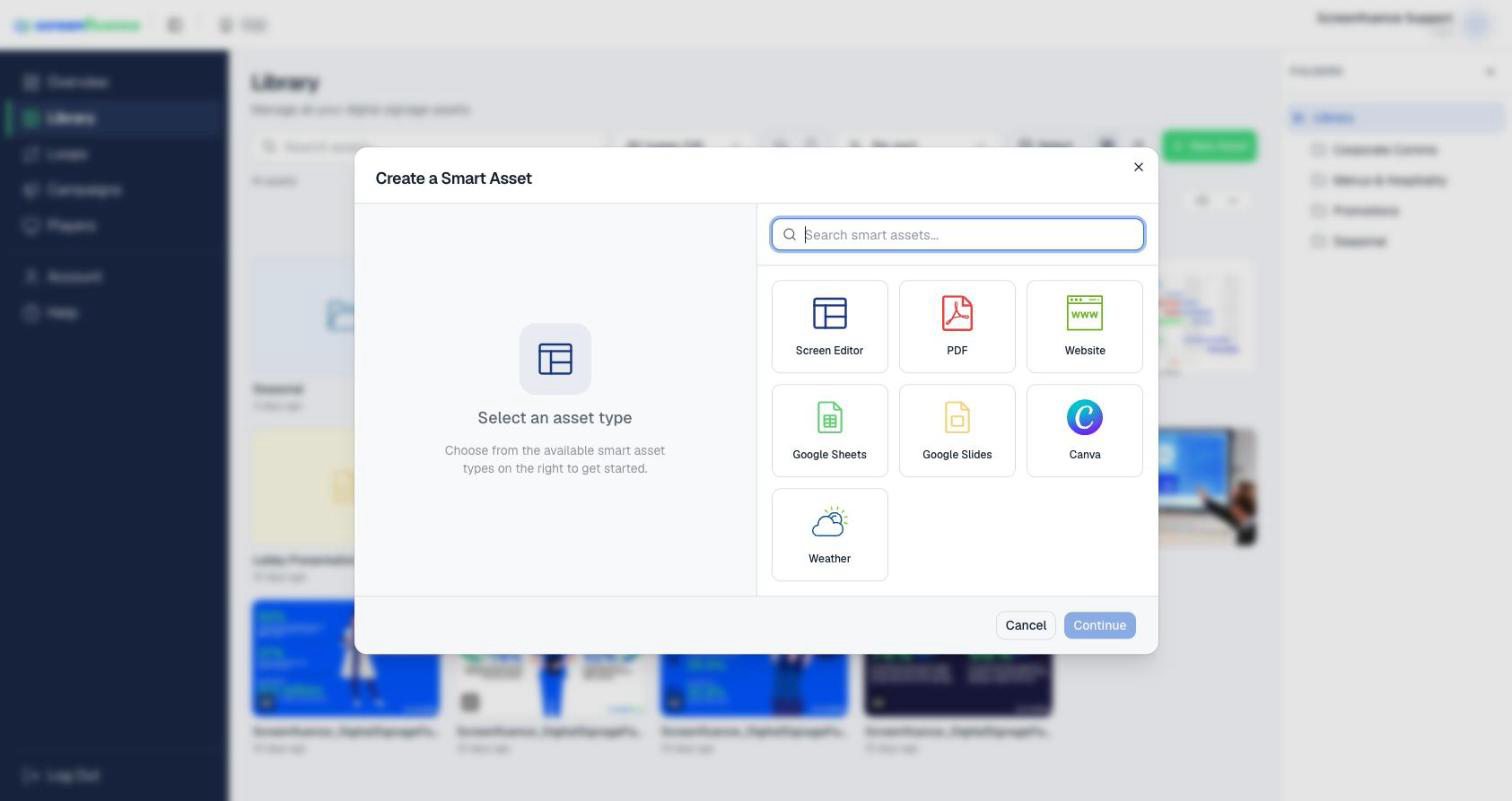
- The Create a Smart Asset window opens ("Select an asset type"). Pick a type — there's a Search smart assets... box if the list grows:
- Screen Editor — "Build a custom HTML asset with our drag-and-drop screen editor. Add text, images, shapes, and more."
- PDF — "Upload a PDF document to display on your screens. Choose which page to show and how it fits."
- Website — "Embed any website URL on your digital signage."
- Google Sheets — "Embed a Google Spreadsheet on your screens."
- Google Slides — "Embed a Google Slides presentation on your screens."
- Canva — "Embed a Canva design on your signage."
- Weather — "Display live local weather on your screens."
- Fill in the form for the type you chose and save. Your new asset appears in the Library.
Tips & good to know
- Once an asset is in your Library, adding it to a screen works the same way for every type: add it to a loop (see How to build a loop).
- Keep things organized as your Library grows: create folders, and add tags so you can find assets with search later (see Organizing your library).
- Each asset type above has its own step-by-step article — see Show a website on your screen, Show Google Slides on your screen, Show a Google Sheet on your screen, Show a Canva design on your screen, Show the weather on your screen, Show a PDF on your screen, and Design a slide with the Screen Editor.
Troubleshooting
- A type shows "Coming Soon": that smart asset isn't available yet — it can't be selected.