Home
Using the Software
Using the Software
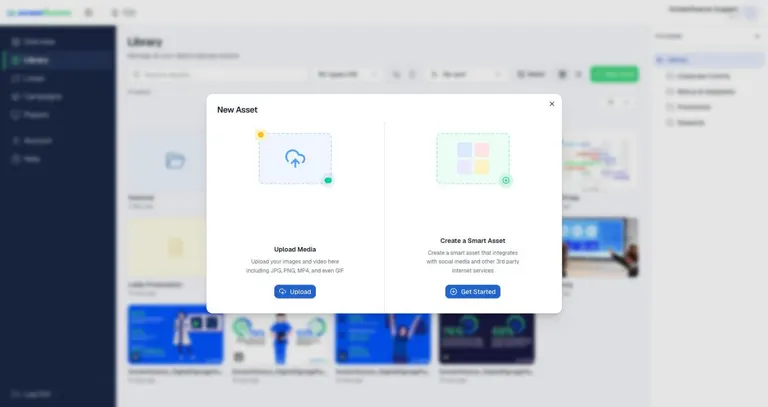
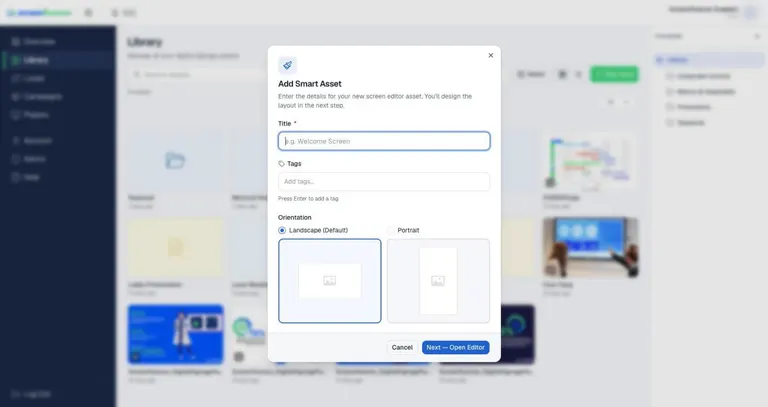
Add an asset to your library
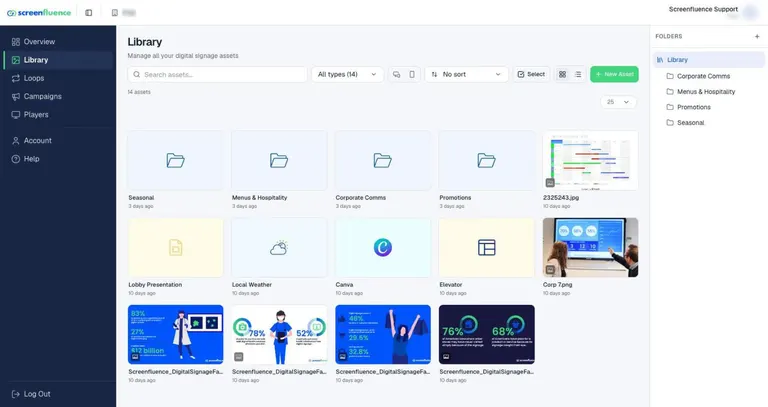
The two ways to add content to your Library — uploading your own media files, or creating a smart asset — and what each asset type does. An asset is any piece of content you can put on screen. Your Library is where all of your assets are stored.
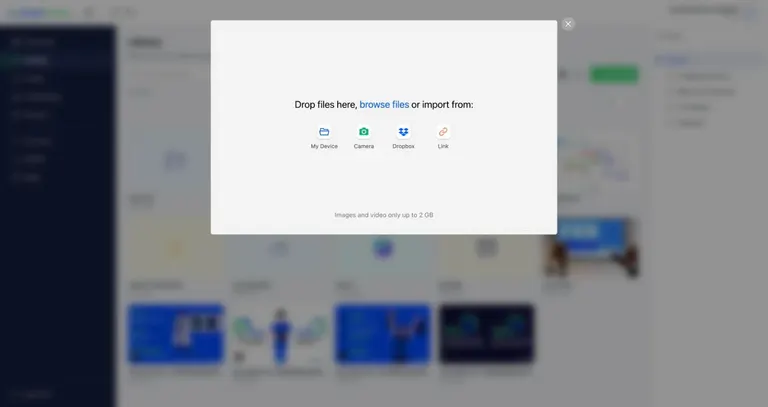
Upload images and videos
Uploading your own image and video files into your Library so you can add them to a loop. An asset is any piece of content you can put on screen; your Library is where all of your assets are stored.
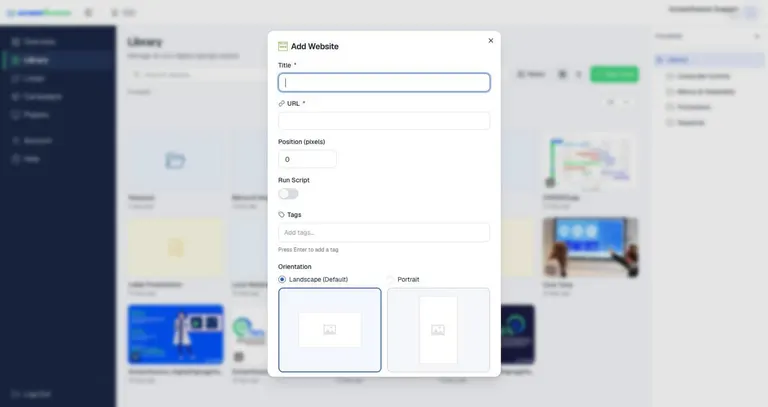
Show a website on your screen
Creating a Website asset — a smart asset that displays any public web page on your screen, just like an image or video. A smart asset is content Screenfluence generates for you from another service or from settings you choose.
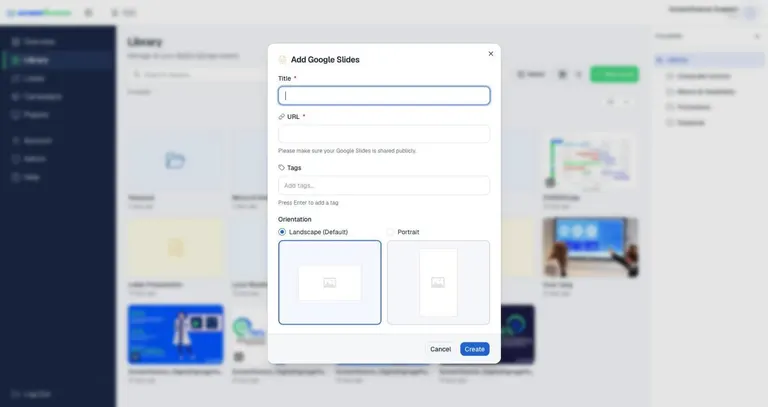
Show Google Slides on your screen
Creating a Google Slides asset — a smart asset that plays a Google Slides presentation on your screen and stays up to date when you edit the presentation. A smart asset is content Screenfluence generates for you from another service.
Show a Google Sheet on your screen
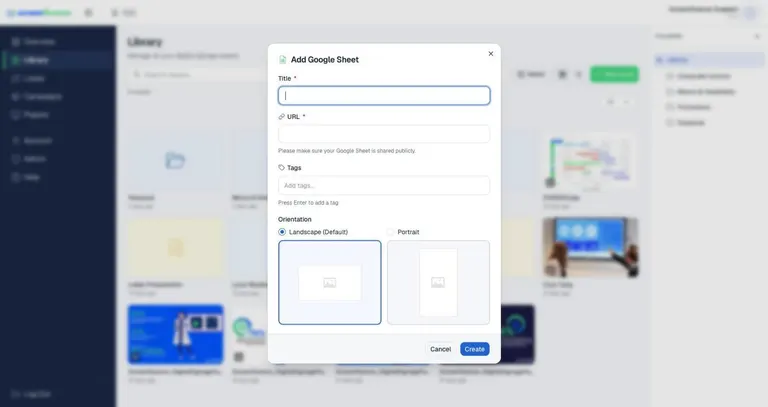
Creating a Google Sheets asset — a smart asset that displays a live spreadsheet on your screen, great for menus, price lists, schedules, and scoreboards that change often. A smart asset is content Screenfluence generates for you from another service.
Show a Canva design on your screen
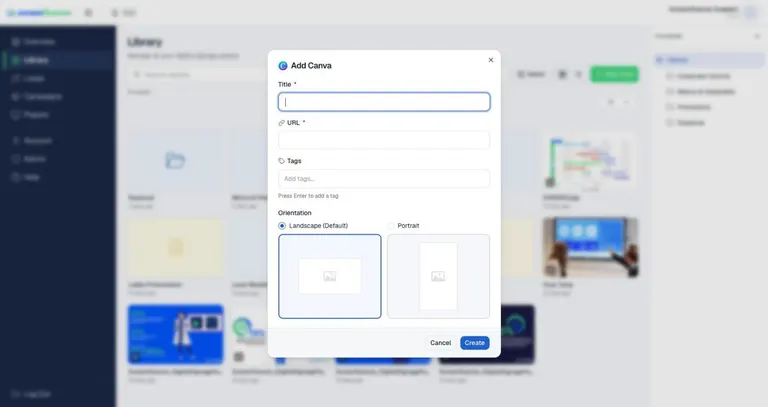
Creating a Canva asset — a smart asset that displays a design straight from Canva, so you can build content with Canva's templates and put it on screen without exporting files. A smart asset is content Screenfluence generates for you from another service.
Show the weather on your screen
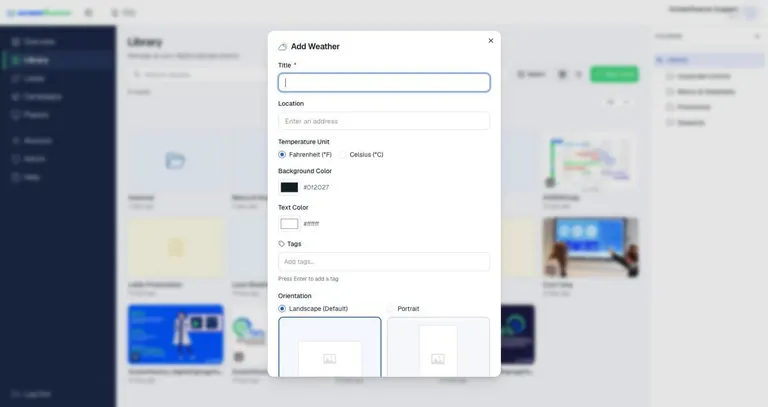
Creating a Weather asset — a smart asset that displays live local weather, styled with your own colors. A smart asset is content Screenfluence generates for you from settings you choose.
Show a PDF on your screen
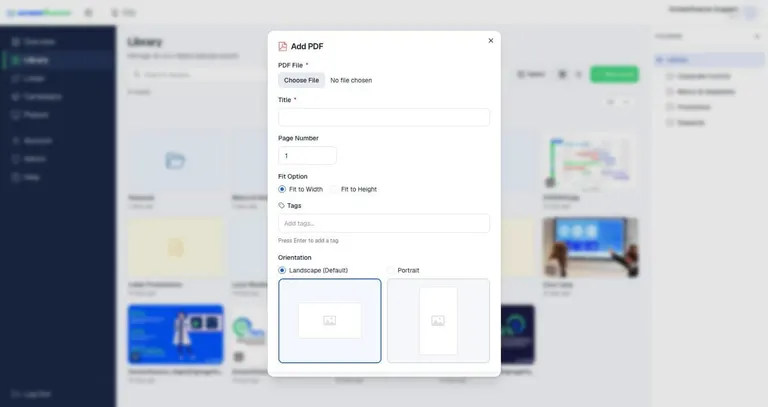
Creating a PDF asset — a smart asset that displays a page from a PDF document, handy for posters, menus, and notices you already have as PDFs. A smart asset is content Screenfluence generates for you from a file or settings you choose.
Design a slide with the Screen Editor
Creating a custom asset with the Screen Editor — Screenfluence's built-in design tool for making your own slides from text, images, shapes, and live elements like the date or weather, without any design software. A template is a pre-made design you can start from and reuse.
Organizing your library — folders, tags & search
Keeping your Library tidy and findable as it grows — folders, tags, search, filters, and views. Your Library is where every asset (image, video, or smart asset) lives.
How to build a loop
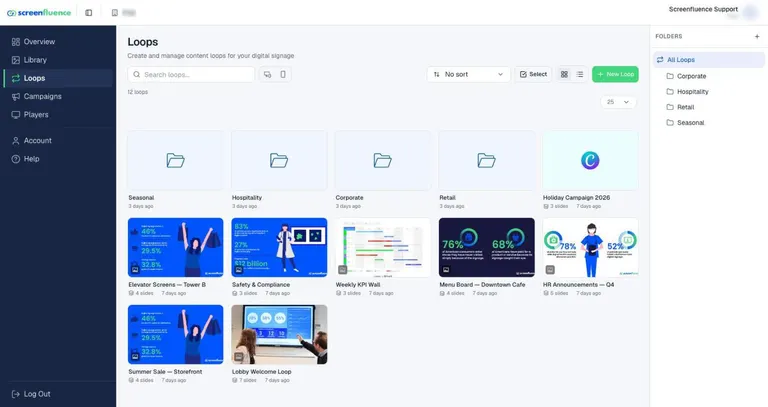
How to create a loop, add content to it, set how long each slide stays on screen, preview it, and edit it later. A loop is a sequence of slides — pictures, videos, and other assets — that plays on your screen on repeat.
How to add a loop to a campaign
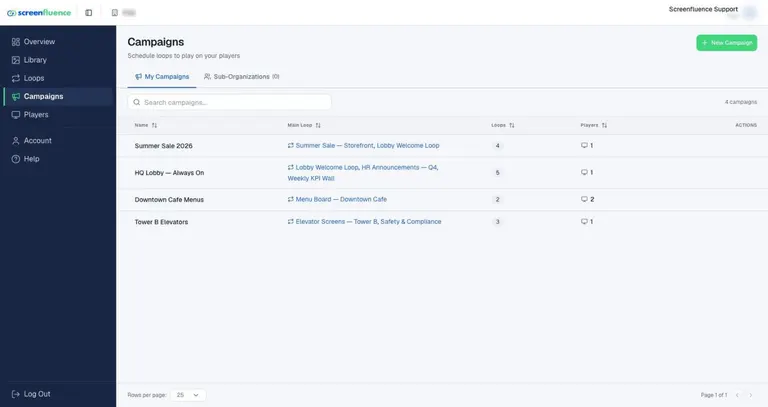
Creating a campaign and choosing which loops play in it. A campaign bundles your loops and exceptions together so you can put them on a screen; a loop is a sequence of slides that plays on repeat.
How to create an exception
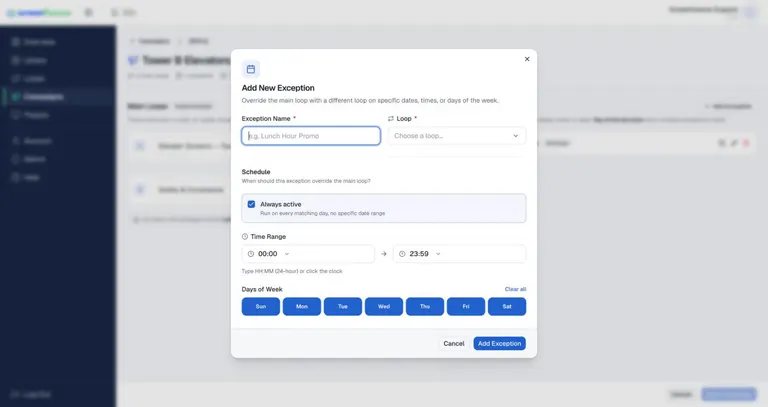
Playing different content at certain times. An exception overrides your campaign's Main Loop with a different loop during the dates, times, and days you choose — for example, a lunch menu from 11:30 to 1:00. Outside those times, the Main Loop plays as usual.
How to put a campaign on your screen
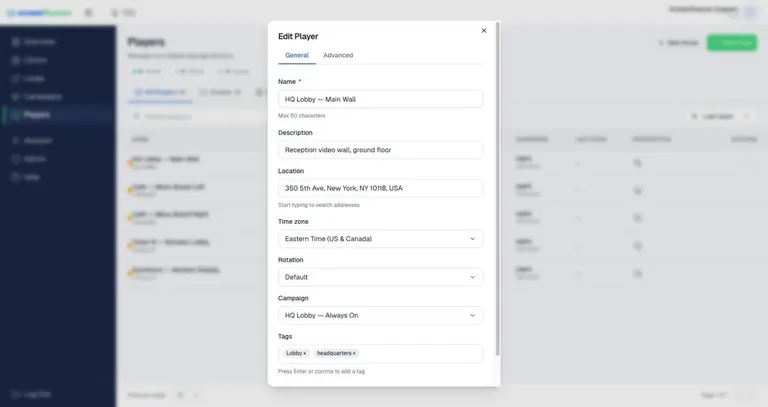
Putting a campaign on a screen. A campaign bundles your loops and exceptions; a player is the Screenfluence device plugged into your TV — each player runs one campaign at a time. There's no separate "activate" button: assigning a campaign to a player is what puts it on screen.
Previewing content & how changes reach your screens
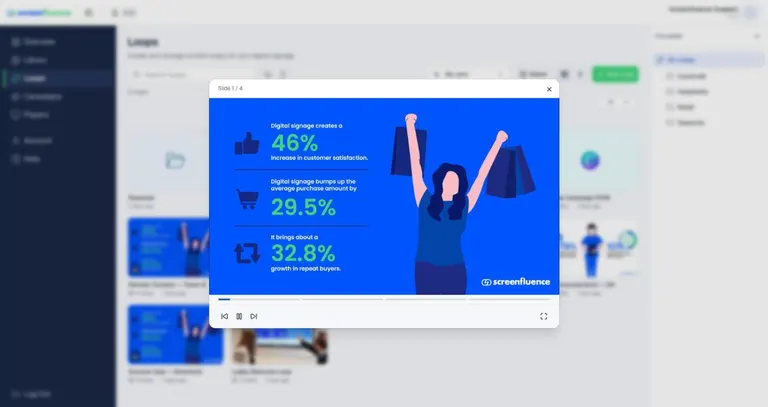
Checking content before it plays, and what happens after you click Save — there is no "publish" button in Screenfluence; changes flow to your screens automatically.
Adding a player to your account
Getting an additional player for a new screen. A player is the Screenfluence device plugged into your TV — each screen needs its own player.
Player groups
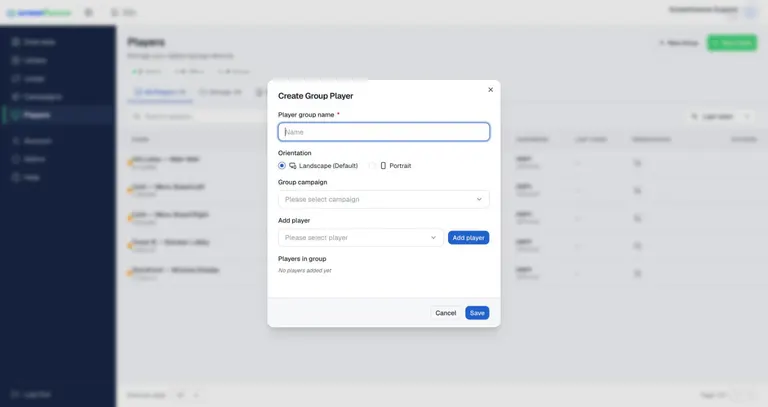
Grouping players so you can manage several screens as one — a player group holds a set of players and a shared campaign, so updating the group updates every screen in it.
Need help?
Didn’t find what you were looking for? We’re here to help.
Contact us