
What this covers: Getting an additional player for a new screen. A player is the Screenfluence device plugged into your TV — each screen needs its own player.
Before you start: None.
Order a new player
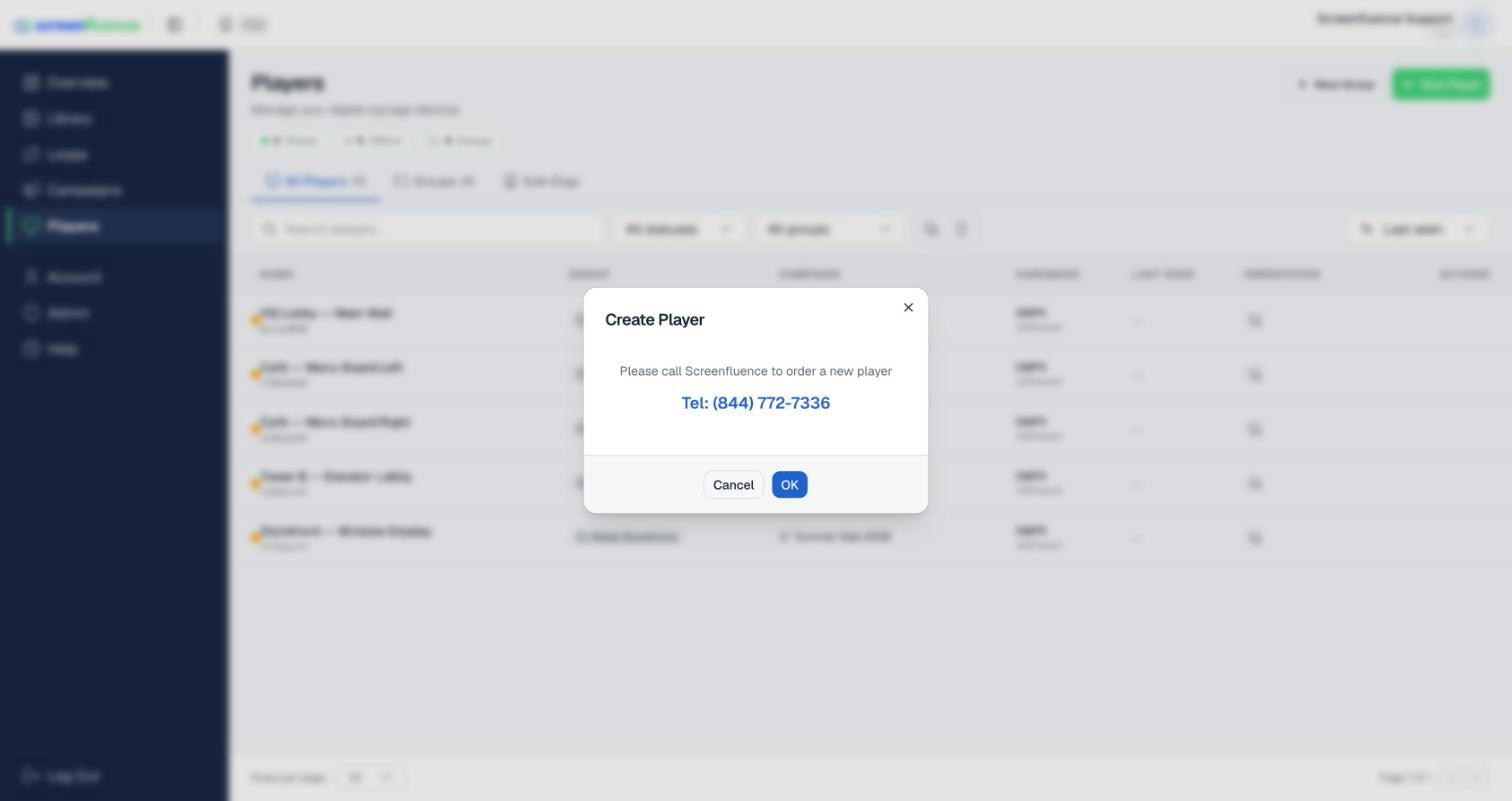
Ordering is handled with us directly: call Screenfluence at (844) 772-7336. (The portal points the same way — the New Player button on the Players page opens a Create Player window that says "Please call Screenfluence to order a new player".)
When it arrives
Your player ships already registered to your account — there's no pairing or setup step in the app. Plug it in, connect it to the internet (see First-time setup), and it appears on your Players page on its own, ready for a campaign (see How to put a campaign on your screen).
Tips & good to know
- Give each player a recognizable name once it appears (its Edit action on the Players page), especially with screens in more than one location.
- The same campaign can run on any number of players — a new screen can show your existing content the moment it comes online.
Troubleshooting
- The new player isn't on your Players page: it hasn't reached the internet yet. Check its power and connection (see How to set up your internet connection), then give it a moment.
- Questions about an order: call (844) 772-7336 or use live chat.