
What this covers: Checking content before it plays, and what happens after you click Save — there is no "publish" button in Screenfluence; changes flow to your screens automatically.
Before you start: None.
Preview a loop
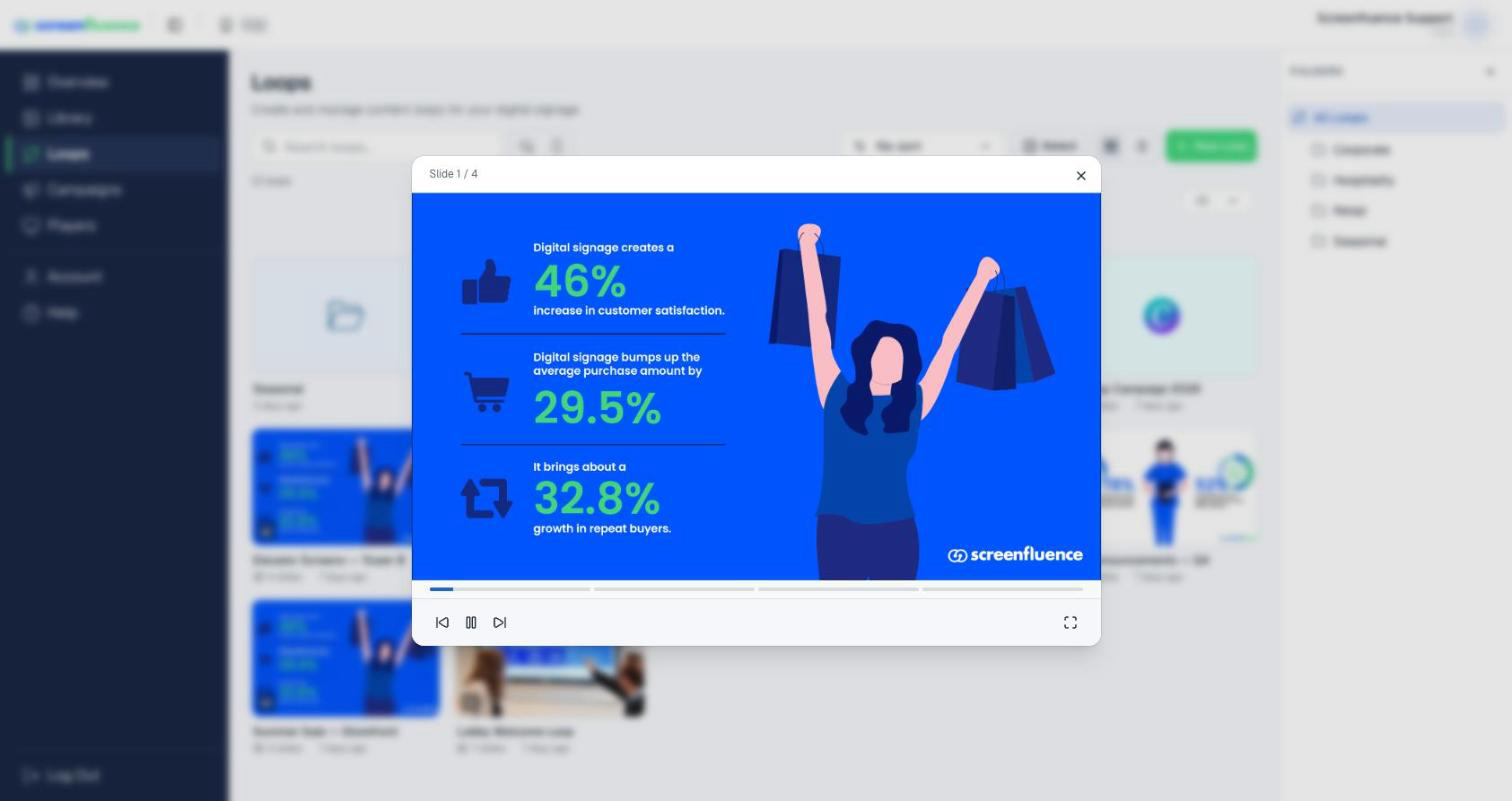
- On the Loops page, hover over a loop and click Preview to watch it play exactly as it will on screen — with a Fullscreen option and a slide counter.
- Inside the loop editor, the Preview Loop button does the same; it unlocks once you've saved ("Save your changes first to preview").
Check what a campaign contains
On the Campaigns page, each row shows the campaign's Main Loop and its Loops and Players counts. Click the counts to see exactly what's inside ("Loops in {{name}}") and where it's running — each entry is a link, so you can jump straight to a loop or player.
How changes reach your screens
When you click Save — on a loop, a campaign, or an asset — Screenfluence pushes the update to every player affected, automatically:
- Save a loop, and every campaign using that loop updates.
- Save a campaign, and every player assigned to it updates.
- Replace or edit an asset, and every loop containing it updates.
Your screens refresh shortly after you save. Players must be online to receive changes; a player that's offline picks them up as soon as it reconnects (see What happens if your player goes offline).
Tips & good to know
- Preview after editing, before walking away: the preview shows exactly what the screen will play.
- No need to un-assign or re-assign campaigns to "push" changes — saving is publishing.
- If a teammate saves the loop you have open, the editor tells you ("Loop updated") and offers Refresh — so you never overwrite each other unknowingly.
Troubleshooting
- The screen hasn't updated: confirm the player's status dot is green on the Players page, and give it a little time. Offline players update when they reconnect.
- The preview looks right but the screen doesn't match: the player may still be downloading larger files (videos take longer). If it persists, check the player's Diagnostics tab or contact support.