
What this covers: Creating a PDF asset — a smart asset that displays a page from a PDF document, handy for posters, menus, and notices you already have as PDFs. A smart asset is content Screenfluence generates for you from a file or settings you choose.
Before you start: Your PDF file, ready to upload.
Steps
- Click Library in the left sidebar, then the green New Asset button.
- In the New Asset window, click Get Started under Create a Smart Asset.
- Select PDF ("Upload a PDF document to display on your screens. Choose which page to show and how it fits.") and continue.
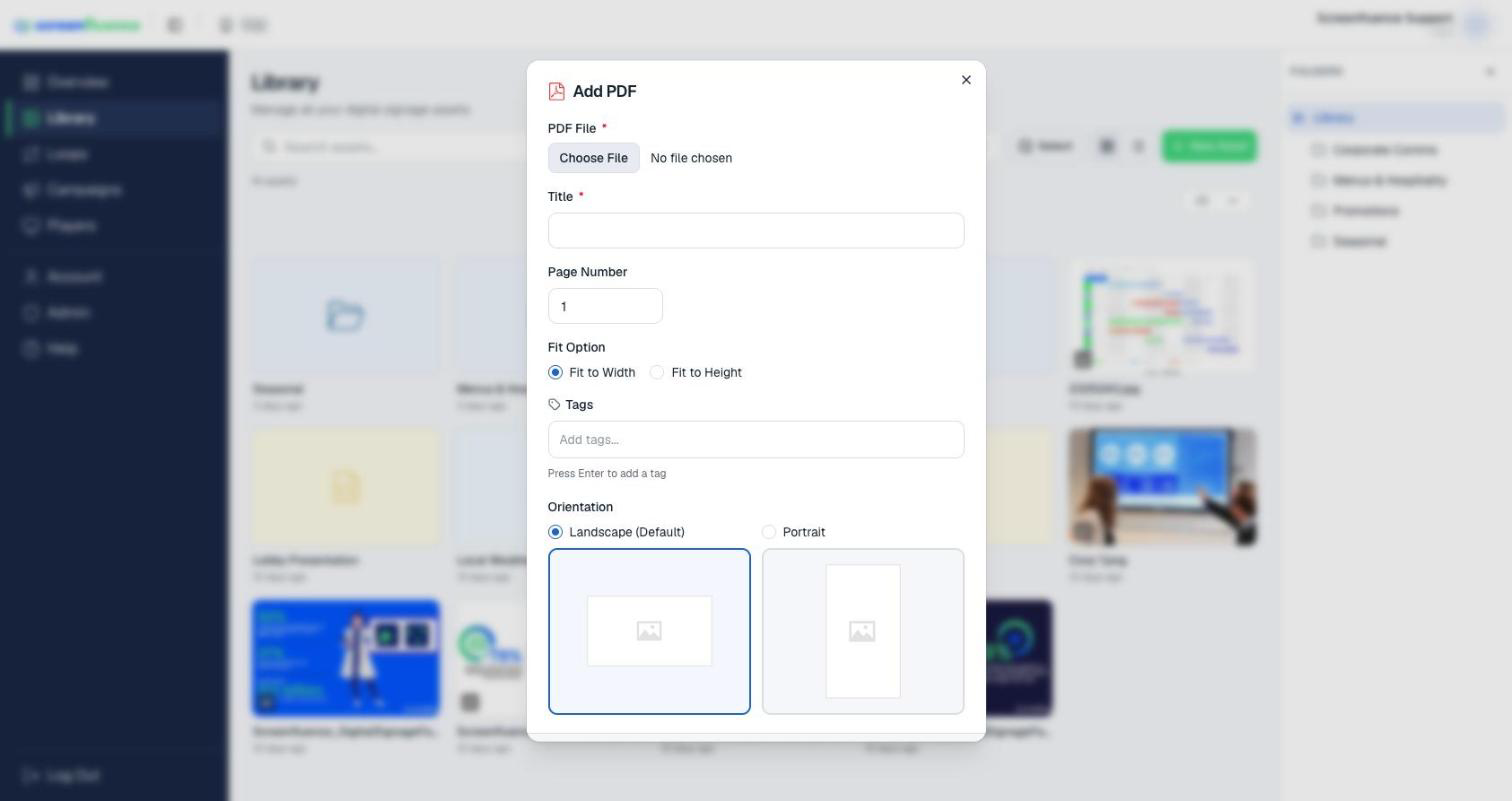
- In the Add PDF window, fill in:
- Title — a name for this asset in your Library.
- PDF File — Choose File to upload your document.
- Page Number — which page of the PDF to display.
- Fit Option — Fit to Width or Fit to Height, whichever suits the page's shape on your screen.
- Click Create. The asset appears in your Library, ready to drag into a loop (see How to build a loop).
Tips & good to know
- One PDF asset shows one page — for a multi-page document, create an asset per page and place them as consecutive slides in your loop (see How to build a loop).
- Portrait-shaped pages usually look best with Fit to Height on a landscape screen; wide pages with Fit to Width.
Troubleshooting
- The page looks cut off or letterboxed: switch the Fit Option — a page can only fill one dimension of the screen unless its shape matches.
- The wrong page shows: edit the asset and correct Page Number.