
What this covers: Playing different content at certain times. An exception overrides your campaign's Main Loop with a different loop during the dates, times, and days you choose — for example, a lunch menu from 11:30 to 1:00. Outside those times, the Main Loop plays as usual.
Before you start: A campaign with a Main Loop (see How to add a loop to a campaign), plus a second loop containing the timed content.
Steps
- Click Campaigns in the left sidebar and open your campaign.
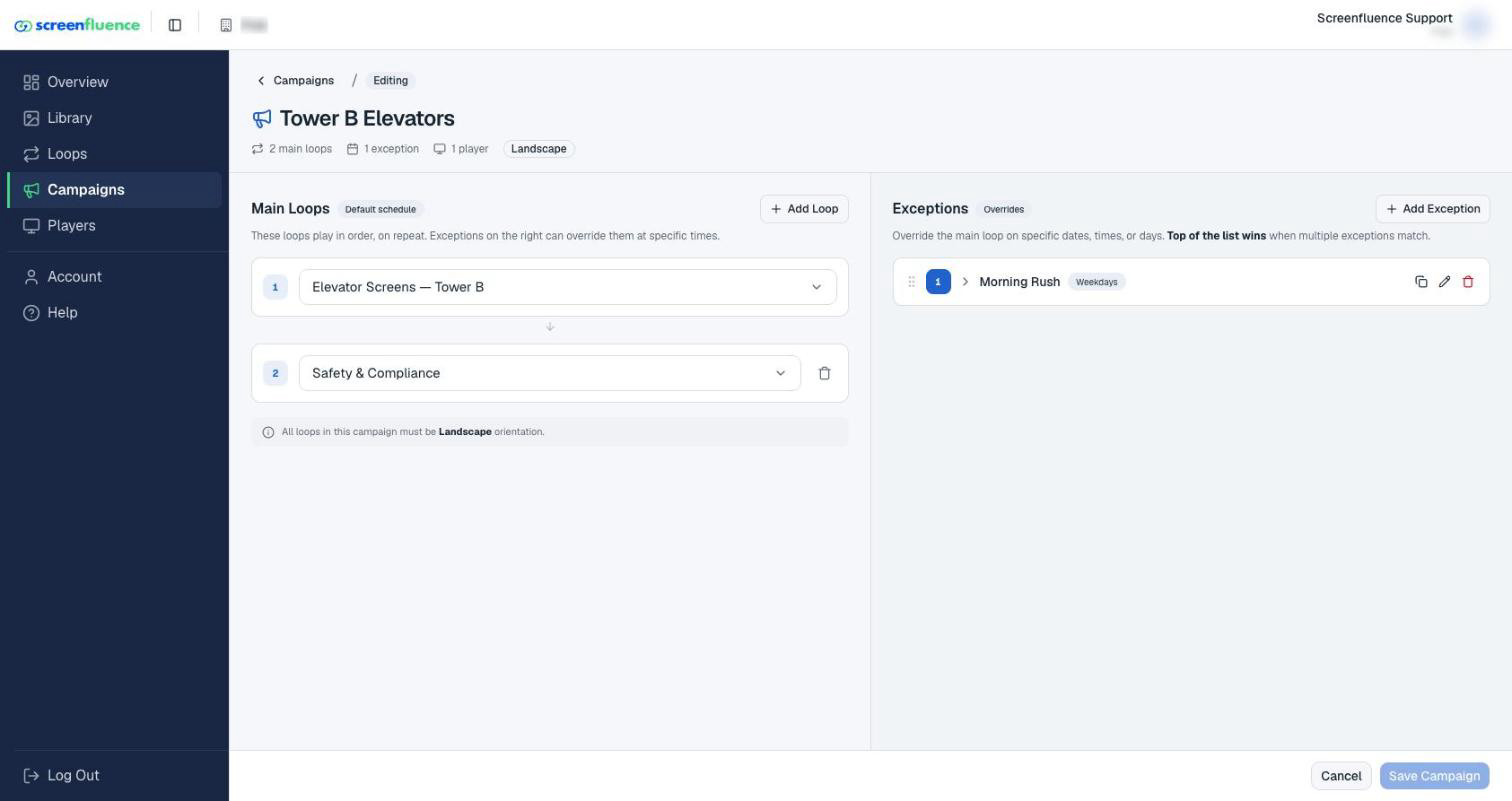
- The editor's right column is Exceptions, badged Overrides — "Override the main loop on specific dates, times, or days. Top of the list wins when multiple exceptions match." (Empty campaigns show "No exceptions — Exceptions let you swap in different loops at specific times.")
- Click Add Exception.
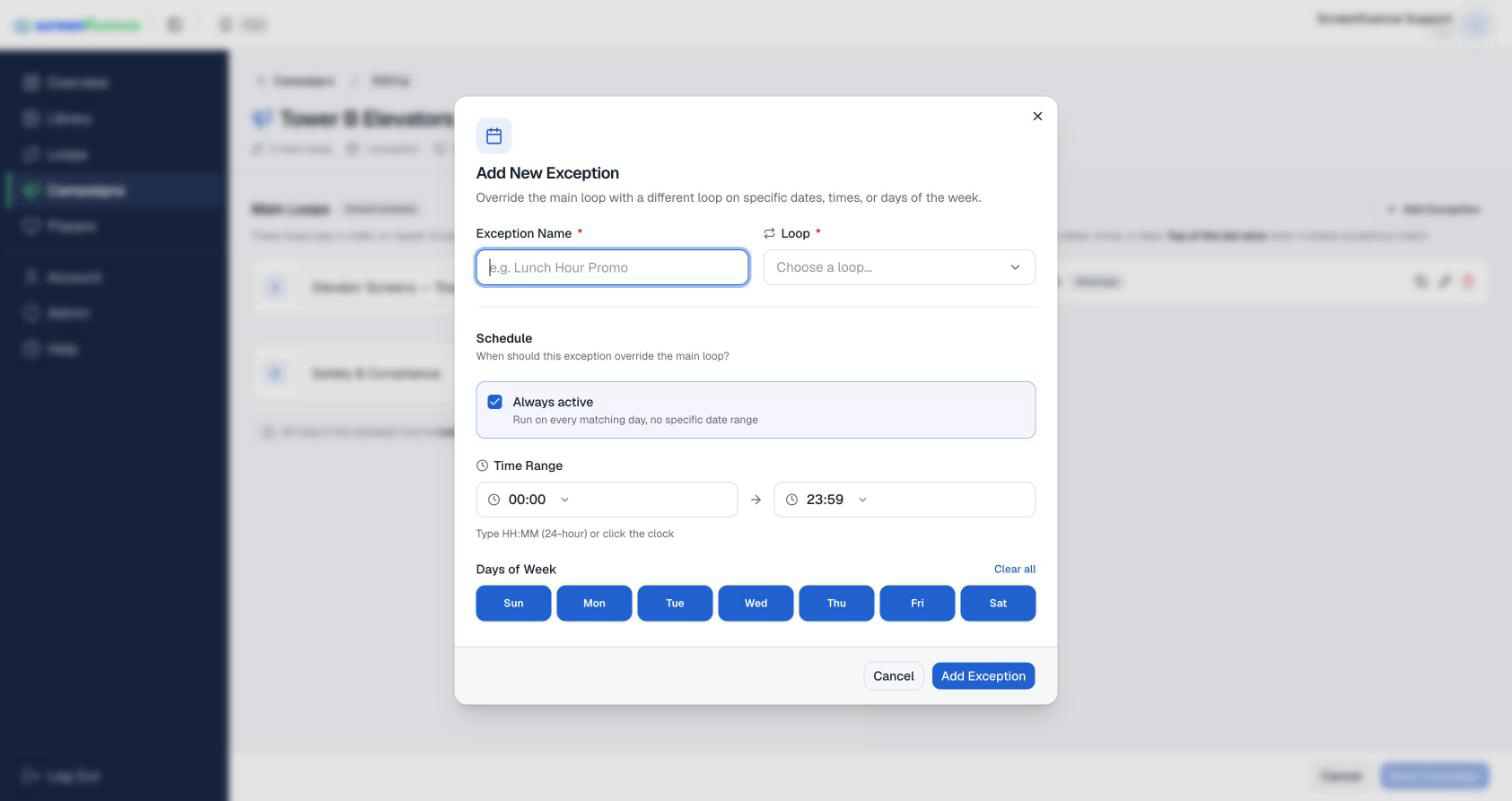
- In the Add New Exception window ("Override the main loop with a different loop on specific dates, times, or days of the week."), fill in:
- Exception Name — what this time slot is for, e.g. "Lunch Hour Promo".
- Loop — pick the loop to play, under Choose a loop....
- The Schedule section ("When should this exception override the main loop?"):
- Always active — on by default, to "Run on every matching day, no specific date range". Turn it off and a Date Range appears — Start date to End date ("Type MM/DD/YYYY or click the calendar") — for one-off or seasonal content.
- Time Range — Start time and End time ("Type HH:MM (24-hour) or click the clock").
- Days of Week — tick the days it should run. The Every day shortcut selects all seven; once all are selected it flips to Clear all.
- Click Add Exception.
- Click Save Campaign. You'll return to the campaigns list, and your screens pick up the change shortly after.
When exceptions overlap: top wins
If two exceptions match the same moment, the one nearer the top of the list wins — the editor says it plainly: "Drag exceptions to reorder. The first matching exception from the top wins." Each exception carries a priority badge ("Priority #1 · highest"), and an exception that can never win shows a "Superseded on overlap" warning naming the winner — "Superseded by #… — drag this above it to win instead."
Tips & good to know
- A campaign can hold as many exceptions as you need — lunch, happy hour, weekends, and holiday promos can all live in one campaign.
- Each exception's card in the campaign editor summarizes its schedule at a glance — "Always" when no date range is set, and day summaries like "Weekdays", "Weekends", or "Every day".
- To edit one later, open it (the Edit Exception window) and finish with Update Exception, then Save Campaign.
Troubleshooting
- "Please select at least one day": tick at least one day under Days of Week.
- "Please specify both start and end dates" / "Start date must be before end date": fix the date range — both ends are needed when Always active is off.
- The exception doesn't fire at the right time: check the player's Time zone in its Edit Player window — exceptions run on the player's local time.
- An exception never plays: look for the "Superseded on overlap" warning — another exception above it wins. Drag yours higher.