
What this covers: Keeping your Library tidy and findable as it grows — folders, tags, search, filters, and views. Your Library is where every asset (image, video, or smart asset) lives.
Before you start: Some assets in your Library (see Add an asset to your library).
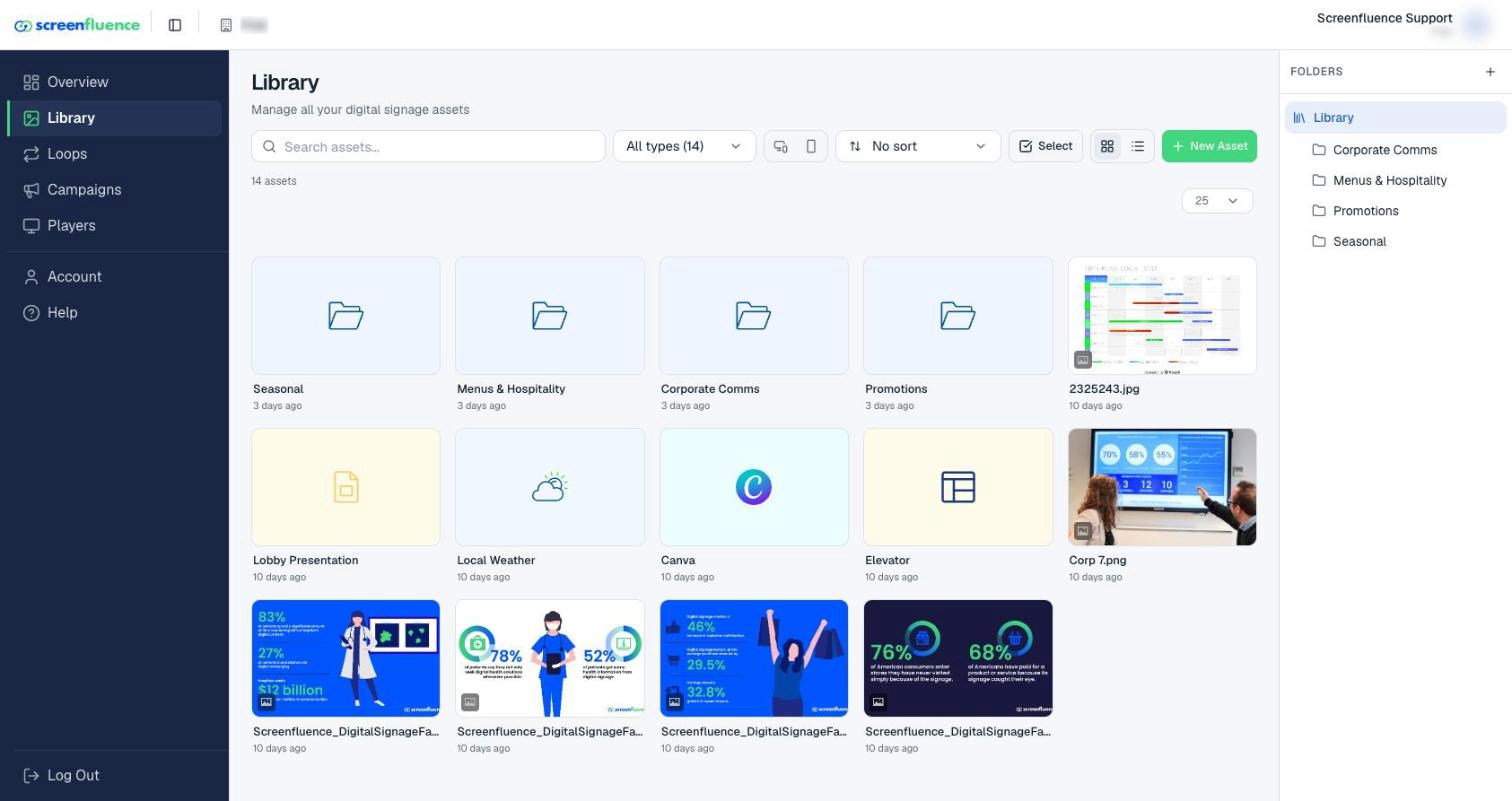
Folders
- Click Library in the left sidebar. Your folder tree sits beside the asset grid. (On smaller screens it's tucked behind a folder button in the toolbar, which opens the tree as a side panel — the same works on the Loops page.)
- Create a folder with New folder and name it. Folders can be nested inside each other.
- Drag any asset onto a folder to move it there. On a touch device (or a smaller screen), use the asset's Move to folder button instead — it opens a dialog with your folder tree; pick the destination and click Move here.
- A folder's menu offers Rename Folder, Share Folder (parent organizations — see Sub-organizations & shared folders), and delete — deleting a folder moves its contents to the parent folder rather than removing them.
New uploads land in whichever folder you have open, so open the right folder before uploading.
Tags
Tags are your own keywords attached to an asset — tag a photo "menu", "summer", "patio" and you can find it by any of those words later.
- Hover over an asset and click the Edit (pencil) icon.
- In the edit window's overview, find the tags field ("Add tags...") and type each tag, pressing Enter after each ("Press Enter to add a tag").
- Save.
Search, filter & sort
Across the top of the Library you can combine:
- Search — matches asset names and tags as you type.
- Type filter — narrow to a single asset type, each with a live count.
- Orientation filter — All orientations, Landscape only, or Portrait only.
- Sort — No sort, Recently updated, Recently created, Name (A-Z), Size (largest), or Duration.
Views and bulk actions
- Switch between the grid and list layouts with the view buttons — the list layout shows extra detail for each asset.
- Click Select to tick multiple assets at once (the toolbar counts "{{n}} selected"), Select All for everything in view, and Delete Selected to remove them together.
Tips & good to know
- On tablets and phones, the action buttons that appear on hover on a computer are simply always visible.
- Plan folders around how you work — by location, by season, or by screen — and let tags handle everything that crosses folders.
- Folders can be shared with sub-organizations if your account has them (see Sub-organizations & shared folders).
Troubleshooting
- You can't edit or delete a folder: folders shared down from a parent organization are read-only — "This folder belongs to your parent organization."
- An asset seems to have disappeared: clear the search box and reset the type and orientation filters — it's usually a filter still applied.