
What this covers: Creating a Canva asset — a smart asset that displays a design straight from Canva, so you can build content with Canva's templates and put it on screen without exporting files. A smart asset is content Screenfluence generates for you from another service.
Before you start: Your design ready in Canva.
Part 1 — Publish your design in Canva
- Open your design in Canva, click Share, then choose More > Website and publish it as a website.
- Copy the published link Canva gives you.
(A regular share/view link may also work, but the published-website link renders best on screen.)
Part 2 — Add it in Screenfluence
- Click Library in the left sidebar, then the green New Asset button.
- In the New Asset window, click Get Started under Create a Smart Asset.
- Select Canva ("Embed a Canva design on your signage. Supports Canva presentations, posters, and other designs.") and continue.
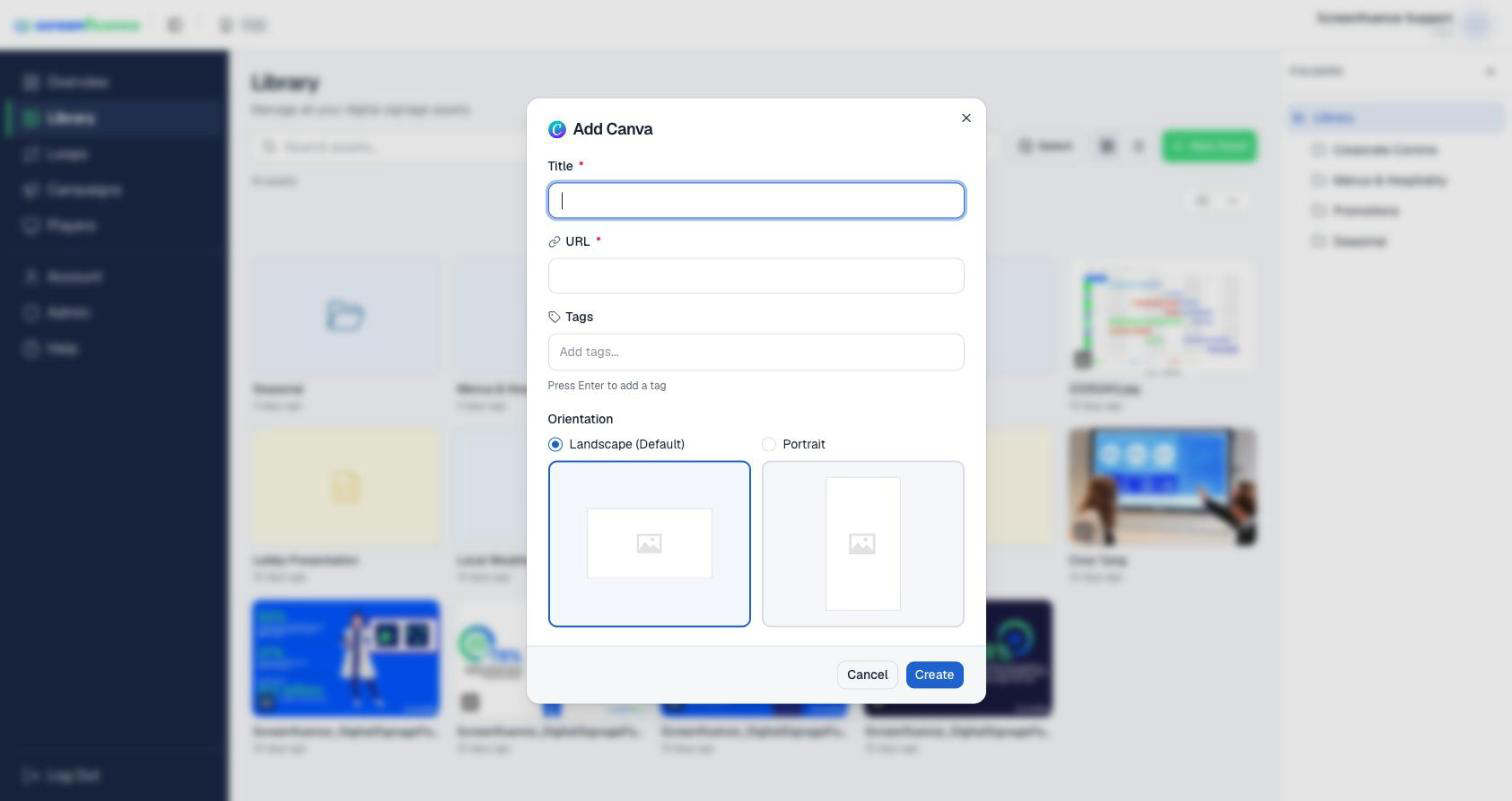
- In the Add Canva window, fill in a Title and paste your Canva link into URL — it must be a canva.com address. (Tags and Orientation are optional.)
- Click Create. The asset appears in your Library, ready to drag into a loop (see How to build a loop).
Tips & good to know
- Edits you make in Canva flow to your screen automatically — tweak the design and the screen follows.
- Size your Canva design for the screen: 1920×1080 for landscape, 1080×1920 for portrait.
Troubleshooting
- The URL won't validate: the link isn't a canva.com address — copy it from Canva's publish dialog rather than your browser bar on another site.
- The design shows a login or permission screen, or renders oddly on your TV: use the published-website link from More > Website rather than a private share link — repeat Part 1.