
What this covers: Creating a campaign and choosing which loops play in it. A campaign bundles your loops and exceptions together so you can put them on a screen; a loop is a sequence of slides that plays on repeat.
Before you start: Build at least one loop first (see How to build a loop).
Create the campaign
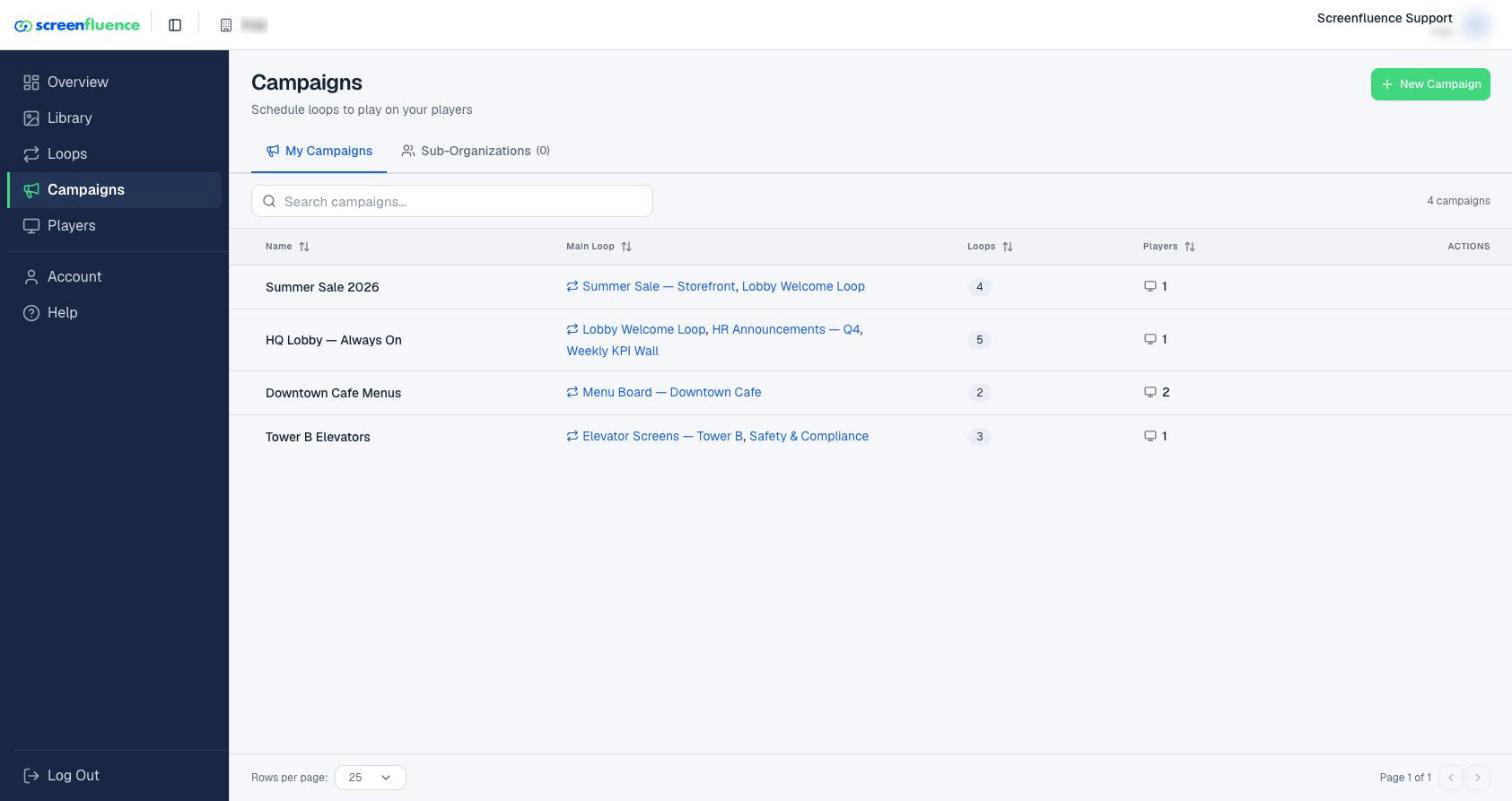
- Click Campaigns in the left sidebar.
- Click the green New Campaign button in the top-right corner.
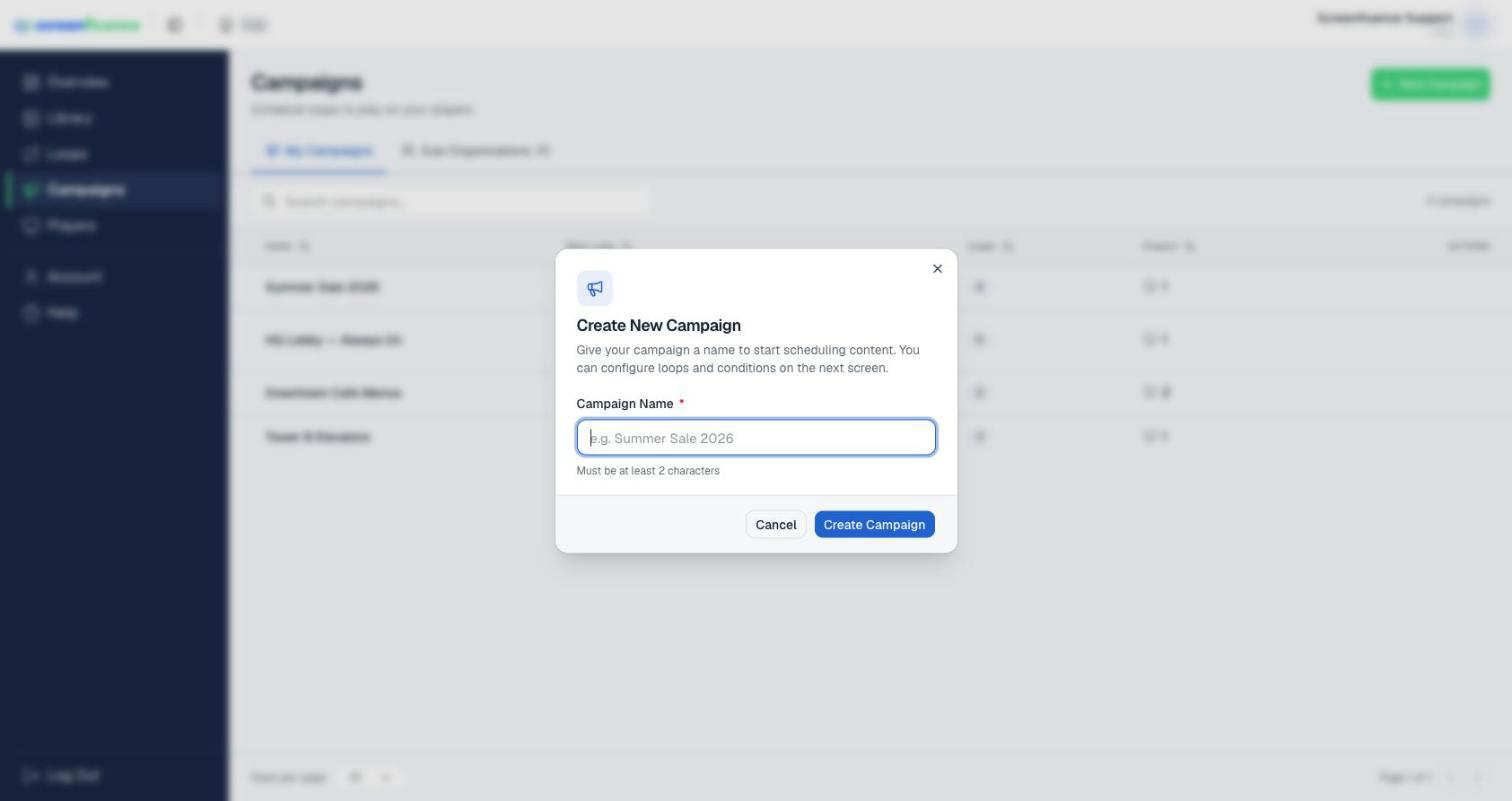
- In the Create New Campaign window ("Give your campaign a name to start scheduling content. You can configure loops and conditions on the next screen."), type a Campaign Name — for example, "Summer Sale 2026".
- Click Create Campaign. The campaign editor opens right away.
Add your Main Loops
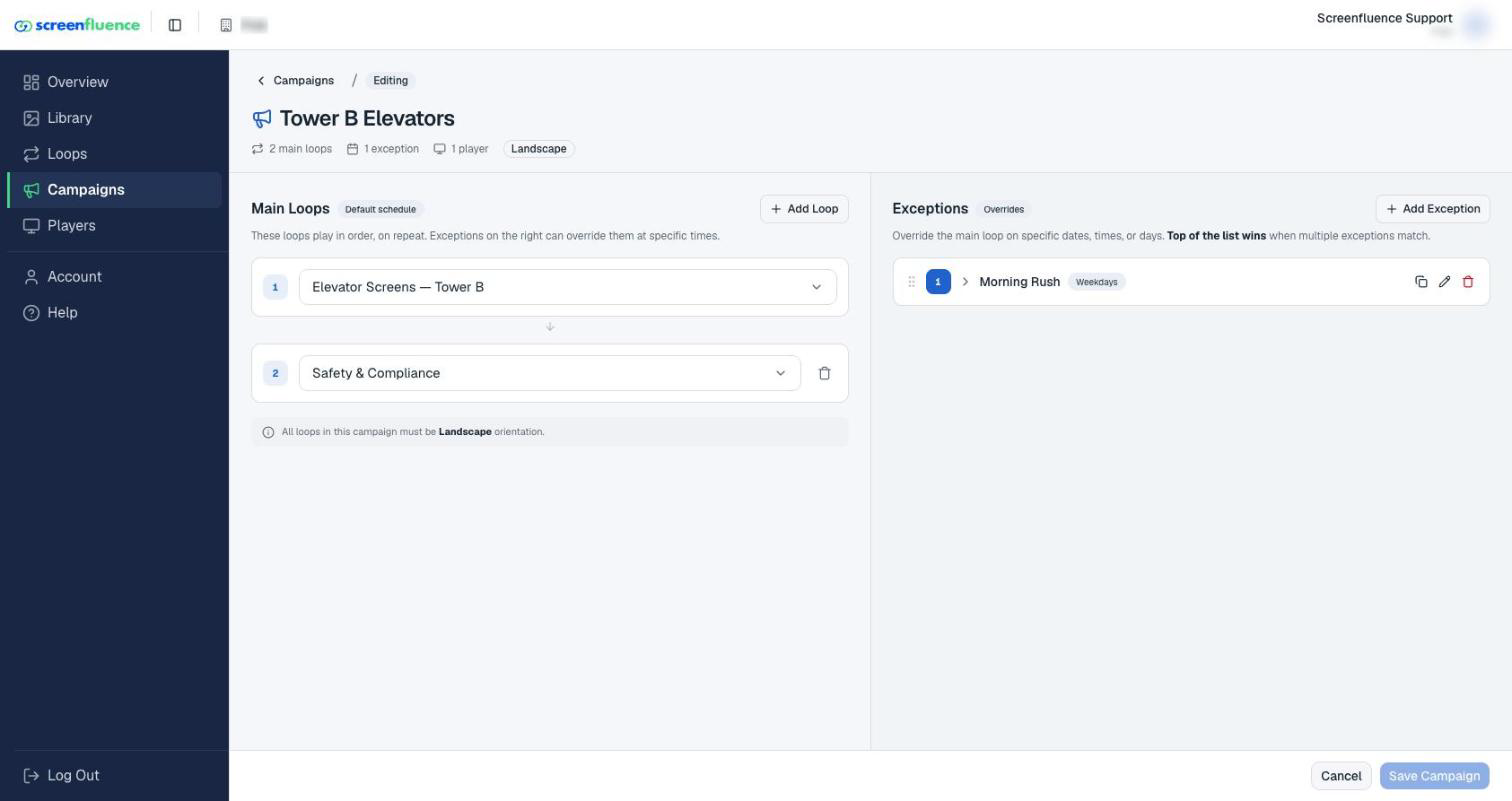
The editor's left column is Main Loops, badged Default schedule — "These loops play in order, on repeat. Exceptions on the right can override them at specific times." The Main Loop is the content your screen plays whenever no exception applies.
- Click Add First Loop and pick your loop from the Select a loop... dropdown.
- To play more than one loop in rotation, click Add Loop and choose another. Loops play in the order listed; remove one with its X.
- Click Save Campaign at the bottom. You'll return to the campaigns list — saving is all it takes; there's no separate publish step.
Tips & good to know
- All loops in a campaign must share one orientation — the editor shows "All loops in this campaign must be landscape orientation" (or portrait) once the first loop sets it.
- The campaigns list shows each campaign's Main Loop, its Loops count, and its Players count — click the counts to see exactly which ("Loops in {{name}}"). The Actions menu offers Clone, Share (parent organizations), and Delete.
- Your campaign won't show on any screen until you assign it to a player — see How to put a campaign on your screen.
- To play different content at certain times (say, a lunch menu from 11:30 to 1:00), add an Exception — see How to create an exception.
Troubleshooting
- "At least one main loop": the campaign can't save empty — pick a loop under Main Loops first.
- Your loop isn't in the dropdown: its orientation doesn't match the campaign's — check the loop's orientation (see How to build a loop).
- Deleting a campaign warns it "will stop playback": the Delete Campaign confirmation tells you how many players are running it — reassign those players first if the screens should keep playing (see How to put a campaign on your screen).