
What this covers: Putting a campaign on a screen. A campaign bundles your loops and exceptions; a player is the Screenfluence device plugged into your TV — each player runs one campaign at a time. There's no separate "activate" button: assigning a campaign to a player is what puts it on screen.
Before you start: A campaign with at least one loop in it (see How to add a loop to a campaign).
Steps
- Click Players in the left sidebar.
- Find the player for the screen you want. Each row shows a status dot, the player's Name, its Group, its current Campaign, its Hardware model, when it was Last Seen, and its Orientation.
- Open the player's Edit action under Actions.
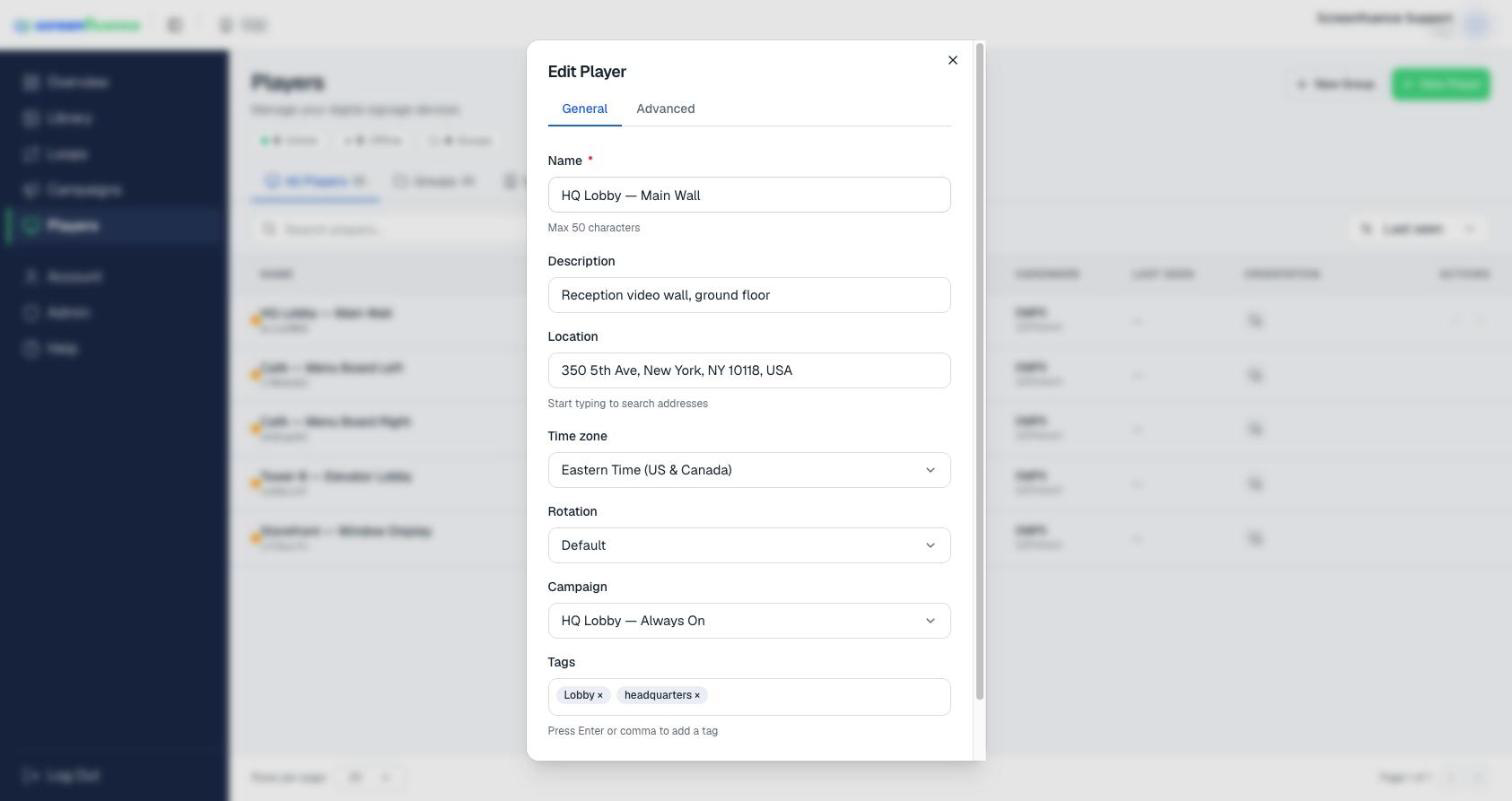
- In the edit window's General tab, find the Campaign dropdown ("Please select campaign").
- Select your campaign. (The list only offers campaigns matching the player's orientation.)
- Click Save. You'll see "Updated player successfully!", and your screen switches to the new campaign shortly after.
Timed content (exceptions)
A campaign plays its Main Loop around the clock. To show something different at set times — a lunch menu, a morning promo — add an exception inside the campaign instead of switching campaigns by hand. See How to create an exception.
Tips & good to know
- A green status dot means the player is connected; Last Seen shows when it last checked in. A player must come online to receive the new campaign.
- The same campaign can run on any number of players — repeat the steps for each screen.
- Unassign campaign in the same dropdown takes a player off its campaign without assigning a new one.
- Changes you later make to the campaign (or its loops) reach every assigned player automatically after you save; you never need to re-assign it.
Troubleshooting
- The screen didn't change: confirm the player's status dot is green and give it a little time. If it's offline, check the player's power and internet (see What happens if your player goes offline).
- Your campaign isn't in the dropdown: its loop orientation doesn't match the player — check the campaign's orientation (see How to add a loop to a campaign).