
What this covers: Creating a Google Sheets asset — a smart asset that displays a live spreadsheet on your screen, great for menus, price lists, schedules, and scoreboards that change often. A smart asset is content Screenfluence generates for you from another service.
Before you start: Your spreadsheet ready in Google Sheets.
Part 1 — Make the sheet viewable
- In Google Sheets, click Share.
- Under General access, choose Anyone with the link as Viewer.
- Click Copy link.
Part 2 — Add it in Screenfluence
- Click Library in the left sidebar, then the green New Asset button.
- In the New Asset window, click Get Started under Create a Smart Asset.
- Select Google Sheets ("Embed a Google Spreadsheet on your screens. Make sure your sheet is shared publicly.") and continue.
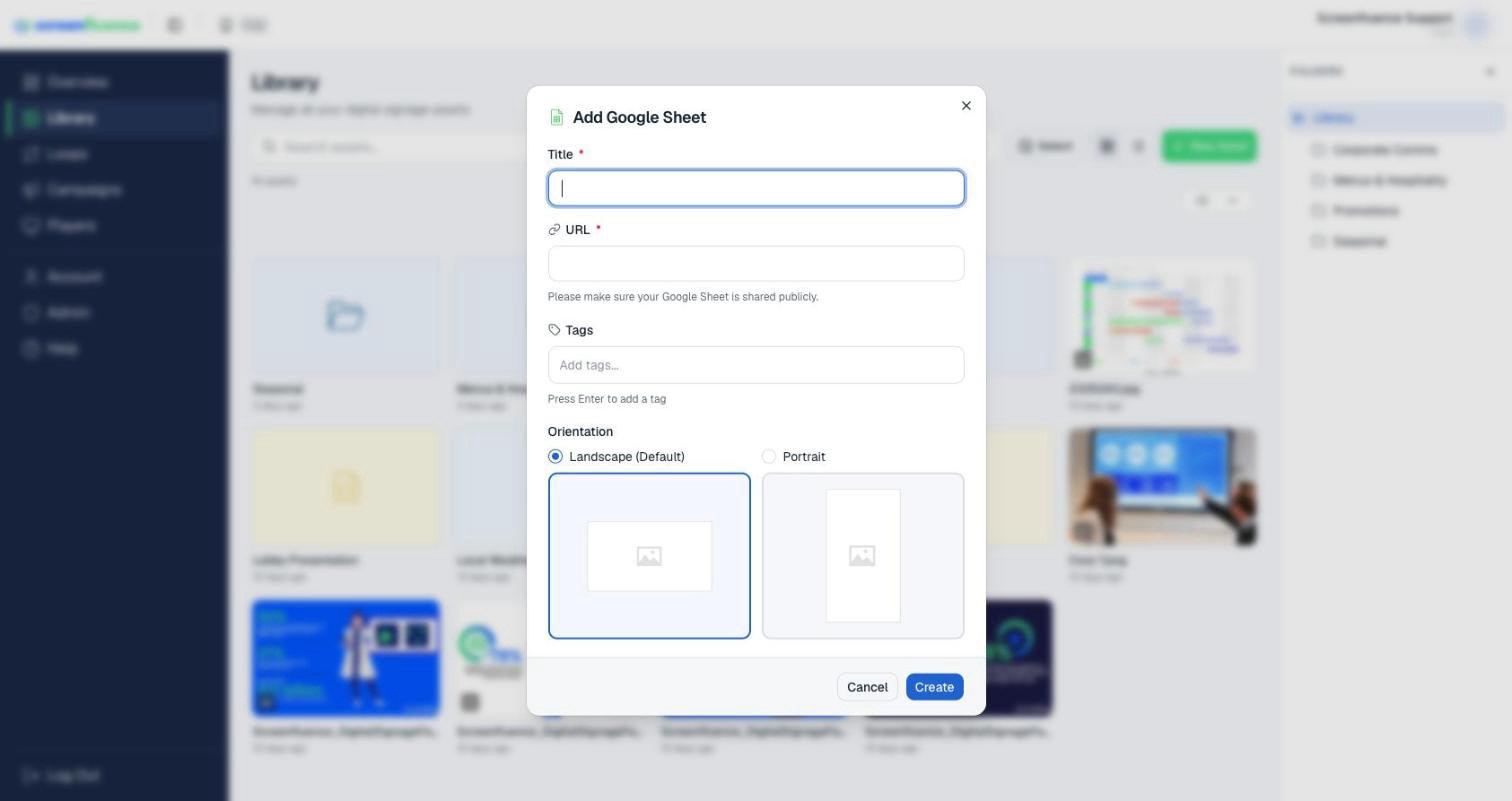
- In the Add Google Sheet window, fill in a Title and paste the link into URL — the form reminds you: "Please make sure your Google Sheet is shared publicly." (Tags and Orientation are optional.)
- Click Create. Screenfluence checks the link right away: if the sheet isn't public, you'll see "Please share your Google Sheet" — fix the sharing in Part 1 and save again. Once accepted, the asset appears in your Library, ready to drag into a loop (see How to build a loop).
Tips & good to know
- Edits to the spreadsheet flow to your screen automatically — update a price in Sheets and the screen follows.
- Screens are read at a distance: bump up font sizes and keep the visible area to the columns that matter.
Troubleshooting
- "Please share your Google Sheet" when saving: sharing isn't set to Anyone with the link — repeat Part 1, then save again. The check happens at save time, so a saved asset won't surprise you on screen later.
- The link won't validate: copy it with Google's Copy link button rather than typing it.