
What this covers: The player detail page — checking what a player has downloaded, how much storage it has left, and remotely rebooting it or grabbing a screenshot of what's on screen.
Before you start: None — just sign in.
Open a player's detail page
- Click Players in the left sidebar, then click the player's row (the Players breadcrumb brings you back).
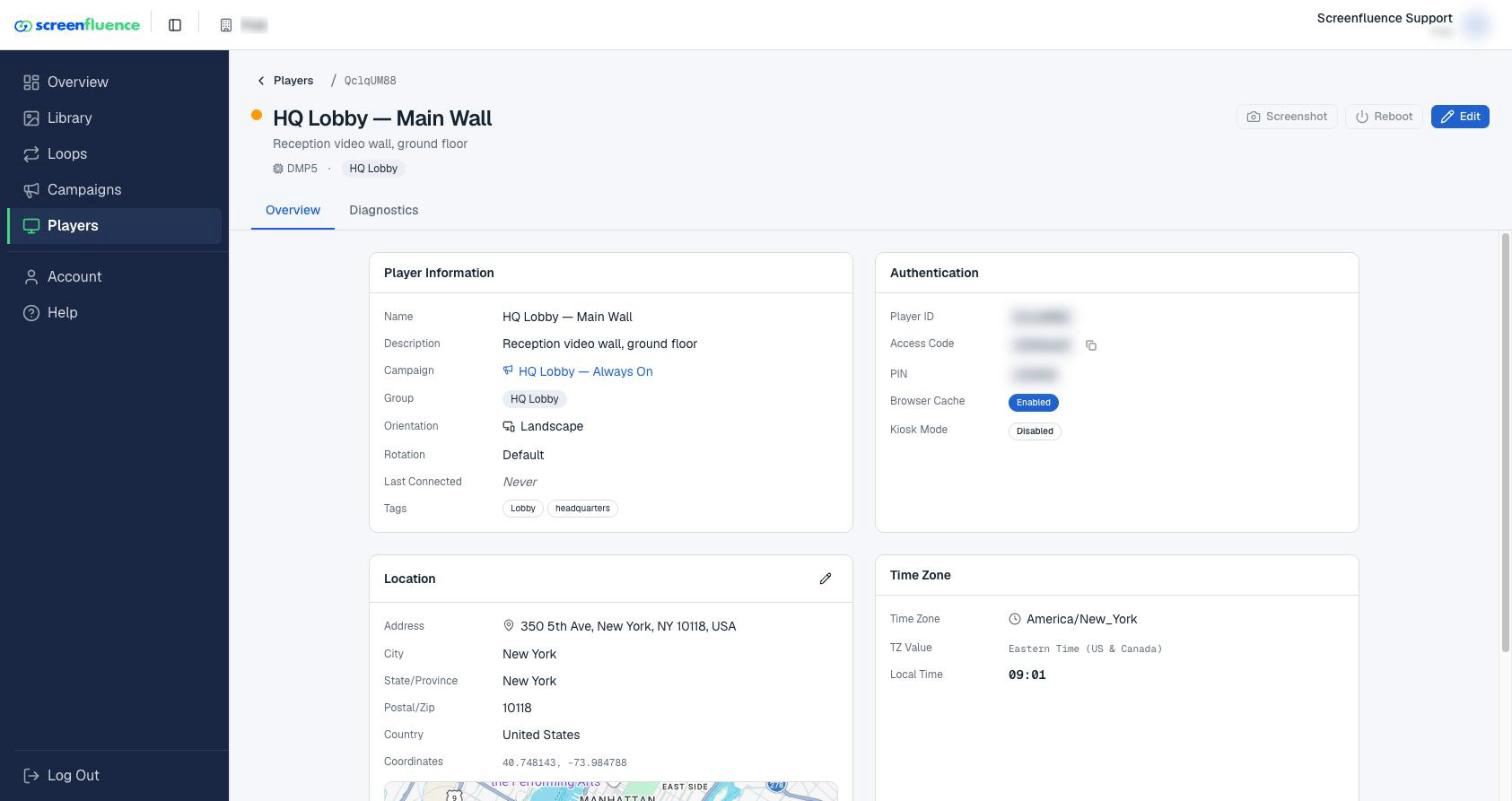
- The page opens on the Overview tab, with Diagnostics beside it.
The Overview tab
- Player Information — the player's Description, Group, Campaign, Rotation, and Last Connected time, plus its Location, Coordinates, and Local Time (exceptions run on the player's local time zone — see How to create an exception), and Kiosk Mode.
- Reboot — restarts the player remotely. The Reboot Player? dialog is upfront: "This will restart … immediately. It will be offline for about 30 seconds." Click Reboot Now; "Reboot command sent" confirms it.
- Screenshot — the Screenshot Player window ("Request a screenshot from …"): click Capture Screenshot, wait a few seconds ("The screenshot is being captured"), then "Click to view screenshot" — so you can check a screen without walking to it.
The Diagnostics tab
Click Diagnostics for the technical picture:
- System Information — the player's Hardware model, Device Name, Free Space (storage remaining), Last Reboot, Current Campaign, Last Update, App Version, and network details (IP Address, MAC Address, Device ID, Connection).
- Files on Device — everything stored on the player (Display Name / File Name, with a Search files... box), so you can confirm your content actually made it down.
A player that hasn't connected yet shows "No diagnostics available — Diagnostics will appear once this player has connected."
Tips & good to know
- Free Space matters most with lots of video: if it runs low, trim unused loops from the player's campaign — and remember the DMP5 ships with 32 GB by default, more available on request (see What happens if your player goes offline).
- Last Update tells you when the player last received changes — a quick way to confirm a recent edit arrived.
- The Screenshot button is the fastest answer to "what's on the screen at the shop right now?"
Troubleshooting
- A file you added isn't in Files on Device: the player may still be downloading it — large videos take a while. Check Last Connected and give it time.
- Reboot didn't help: power-cycle it at the outlet (unplug, wait a few seconds, plug back in). If the front display reads "BOOT" afterwards, contact Screenfluence immediately at 1-844-772-7336.