
What this covers: Reading the Players page — how to tell at a glance which screens are connected, what they're playing, and when a player was last seen.
Before you start: None — just sign in.
Steps
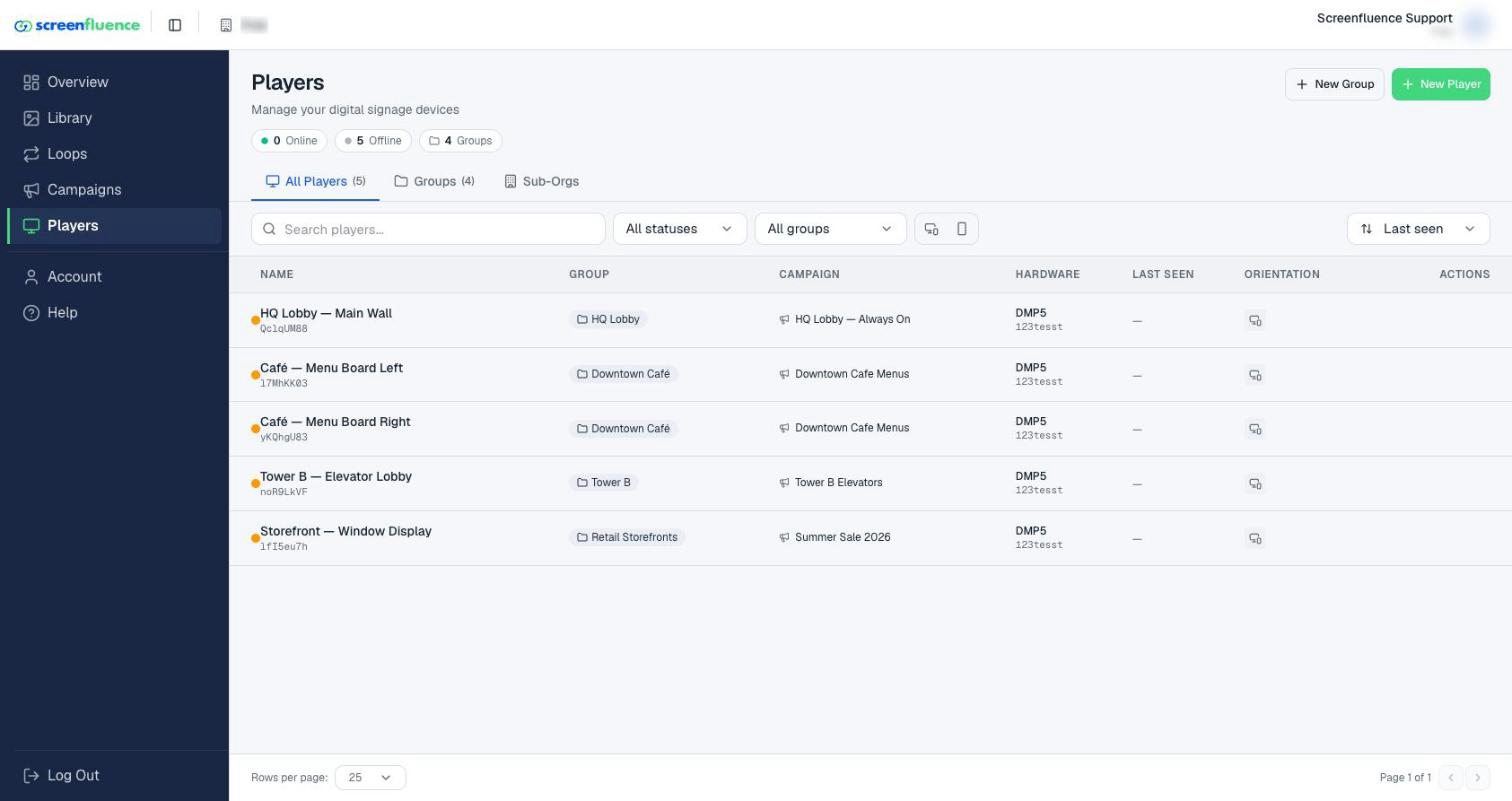
- Click Players in the left sidebar (tabs: All Players, Groups, Sub-Orgs).
- Each player's row starts with a colored status dot — green means connected right now; gray means offline; amber means the player has never connected yet. The row also shows:
- Name — the name you gave the player (with its player code beneath).
- Group — its player group, if you use groups (see Player groups).
- Campaign — what it's assigned to play.
- Hardware — the player model.
- Last Seen — when it last checked in.
- Orientation — landscape or portrait.
- Narrow the list with the status filter (All statuses / Never connected) or sort by Last seen, name, or status.
- For a deeper look at any player, click its row — the detail page's Overview tab shows Last Connected (a never-connected player shows "Never"), and the Diagnostics tab covers storage and files (see Player diagnostics & storage).
Tips & good to know
- The dashboard's Player Fleet panel ("Real-time status of your signage network") gives the same health check as four numbers — Total Players, Online, Offline, and Groups — with a View All Players link (see Your dashboard).
- The page updates live — status dots change in front of you, no refresh needed.
Troubleshooting
- A player's dot is gray: it's offline — see What happens if your player goes offline for how to bring it back.
- A brand-new player shows an amber dot (never connected): it hasn't come online for the first time yet — see First-time setup.