
What this covers: Adding teammates to your Screenfluence account, choosing their role, and removing users. There's no per-user charge — every teammate should have their own login.
Before you start: You need an Org Admin login — only Org Admins manage users.
Add a user
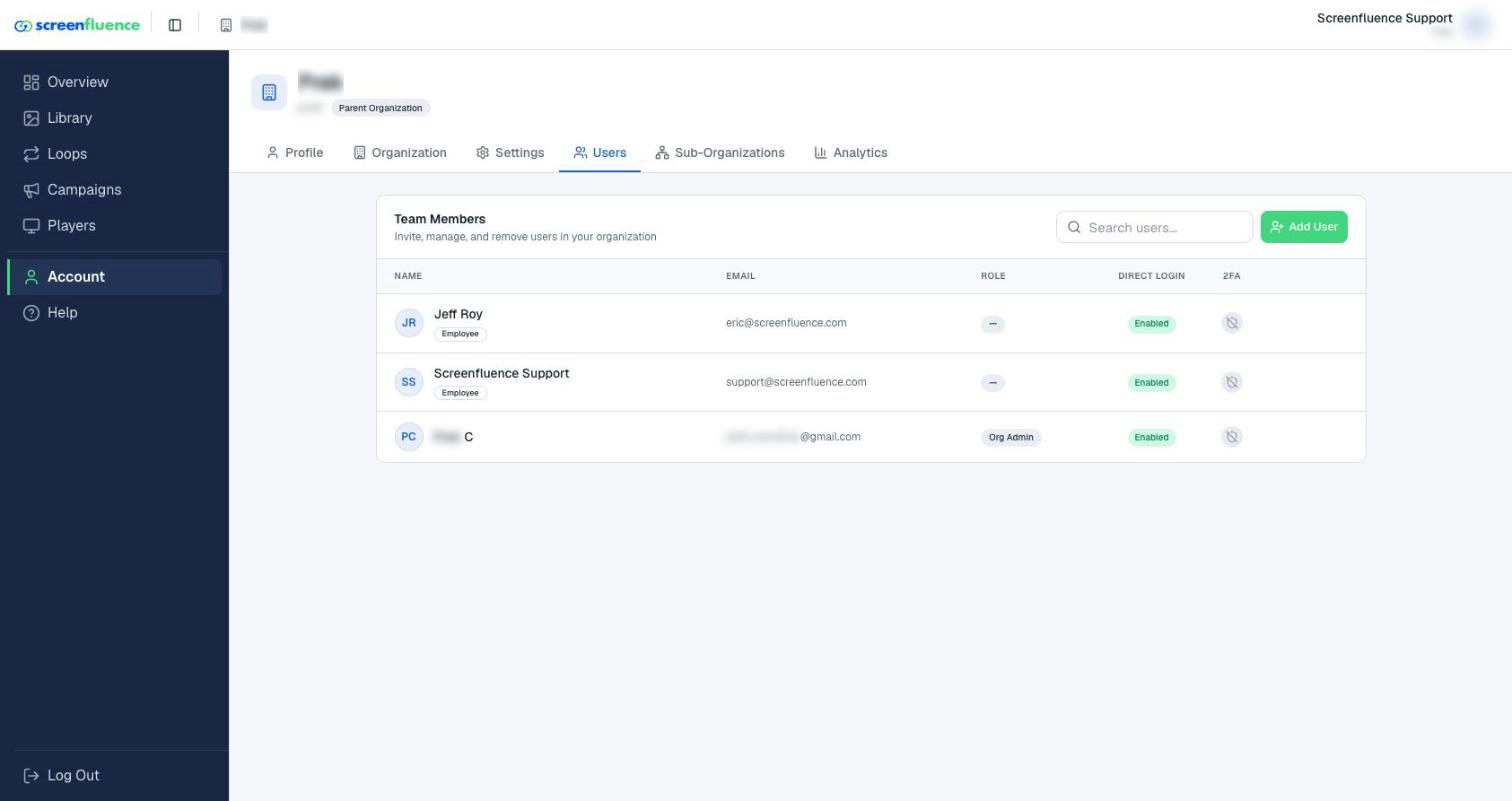
- Click Account in the left sidebar, then open the Team Members page ("Invite, manage, and remove users in your organization").
- Click the green Add User button.
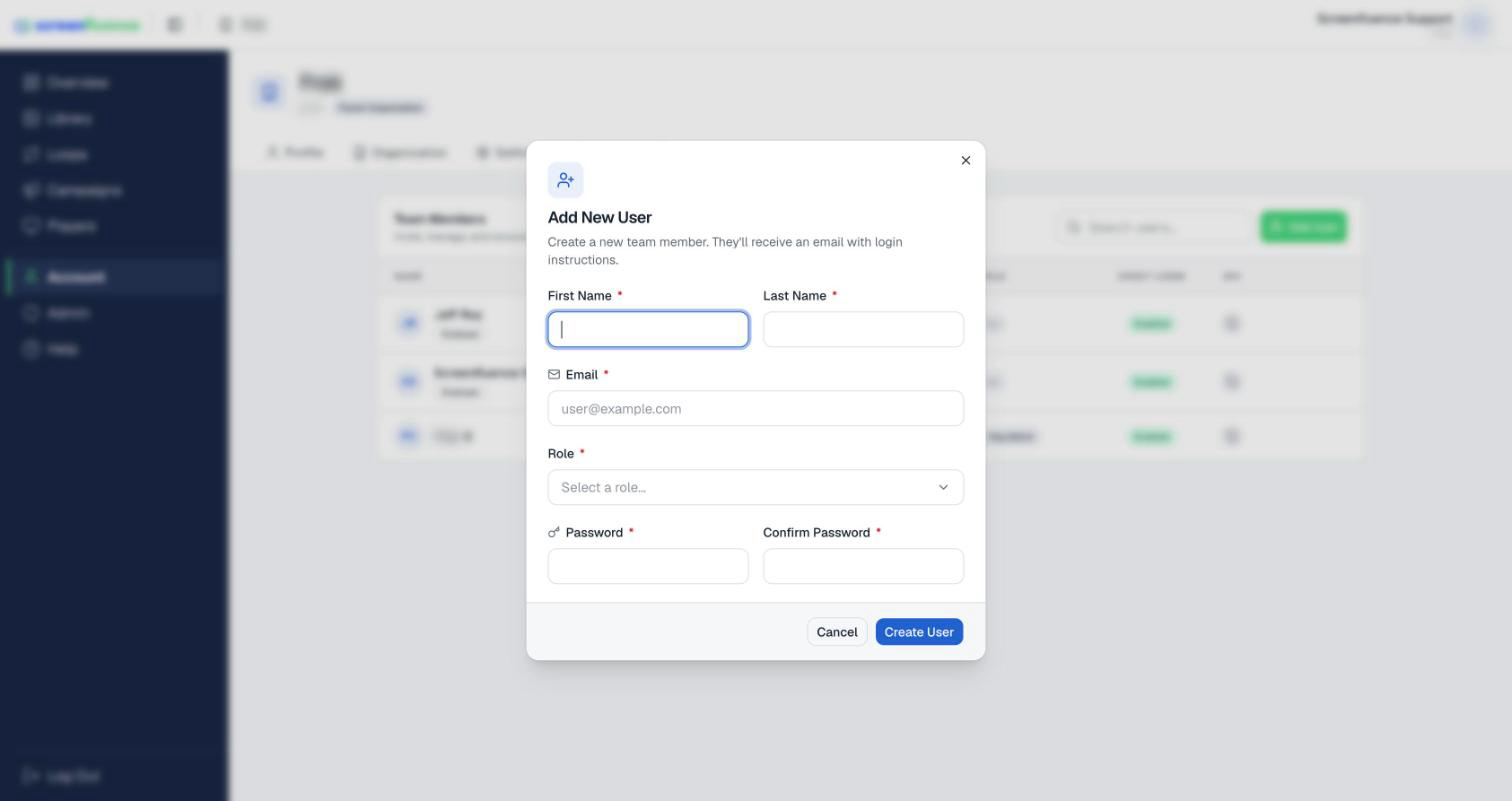
- In the Add New User window ("Create a new team member. They'll receive an email with login instructions."), fill in:
- First Name and Last Name
- Email — their login email
- Role — pick from the Select a role... list (it's searchable — "Search roles..."). The standard roles are Manager, Contributor, Org Admin, and Account Role; your organization may also have custom roles of its own in the list.
- Password and Confirm New Password — their starting password ("8+ chars, 1 uppercase, 1 number")
- Click Create User. You'll see "Created user successfully!", the user appears in the list, and they receive an email with login instructions.
Manage existing users
The list shows each user's name, email, Role, and whether two-factor authentication is on (the shield tooltip reads "2FA enabled" / "2FA disabled"). From a user's row you can:
- Edit — the Edit User window ("Update …'s profile and permissions."): change their details or role, toggle Direct Login ("Allow sign-in with email and password" — turn off for SSO-only organizations), or require Two-Factor Authentication ("Require 2FA code on every login").
- Delete — the confirmation is blunt for a reason: "Remove … from your organization? They'll lose access immediately."
Tips & good to know
- Give most teammates a limited role (like Contributor) and keep Org Admin for the few who manage users and settings.
- Each person having their own login keeps the dashboard's Recent Activity meaningful — you can see who changed what (see Your dashboard).
- Requiring 2FA per-user (in Edit User) is a good baseline for anyone with the Org Admin role (see Account settings & your profile for setting up their authenticator).
Troubleshooting
- A teammate can't see the Team Members page: user management needs the Org Admin role.
- A new user can't sign in with their password: check Direct Login is enabled for them — SSO-only organizations leave it off by design (see Enabling Single Sign On).