
What this covers: The Account area — your profile, password, two-factor authentication, the interface language, and the organization-wide defaults for loops, the Library, and the Screen Editor.
Before you start: Profile changes need only your own login; Settings needs an administrator role.
Your profile
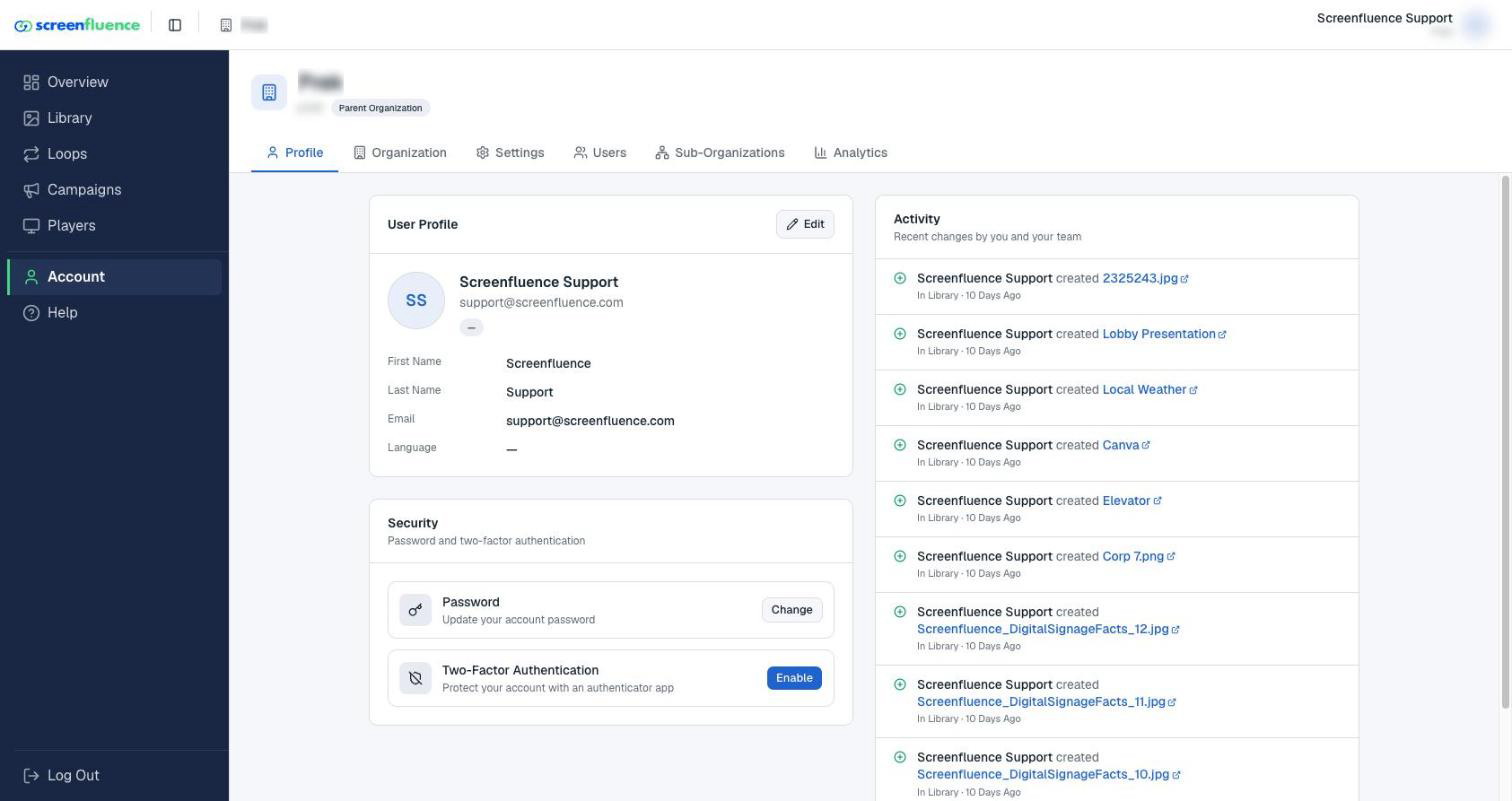
- Click Account in the left sidebar — you land on the User Profile page.
- Edit Profile ("Update your personal information and language preference.") changes your First Name, Last Name, and Language — the portal is available in English, French, and Spanish, and your choice applies to the whole interface for you.
- The Security section ("Password and two-factor authentication") holds:
- Change Password — enter your Current Password and a new one ("Must be at least 8 characters with 1 uppercase and 1 number"), then Update Password.
- Two-factor authentication — click Enable to open Enable Two-Factor Authentication: "Scan the QR code with Google Authenticator, 1Password, or any TOTP app, then enter the 6-digit code", type the Verification Code, and click Enable 2FA. Your profile then shows the "2FA Enabled" badge ("Authenticator app connected"). Disabling asks you to confirm — "Disable Two-Factor Authentication?" — with Keep 2FA as the safe default.
- Activity ("Recent changes by you and your team") lists recent account actions.
Organization defaults (Settings page, administrators)
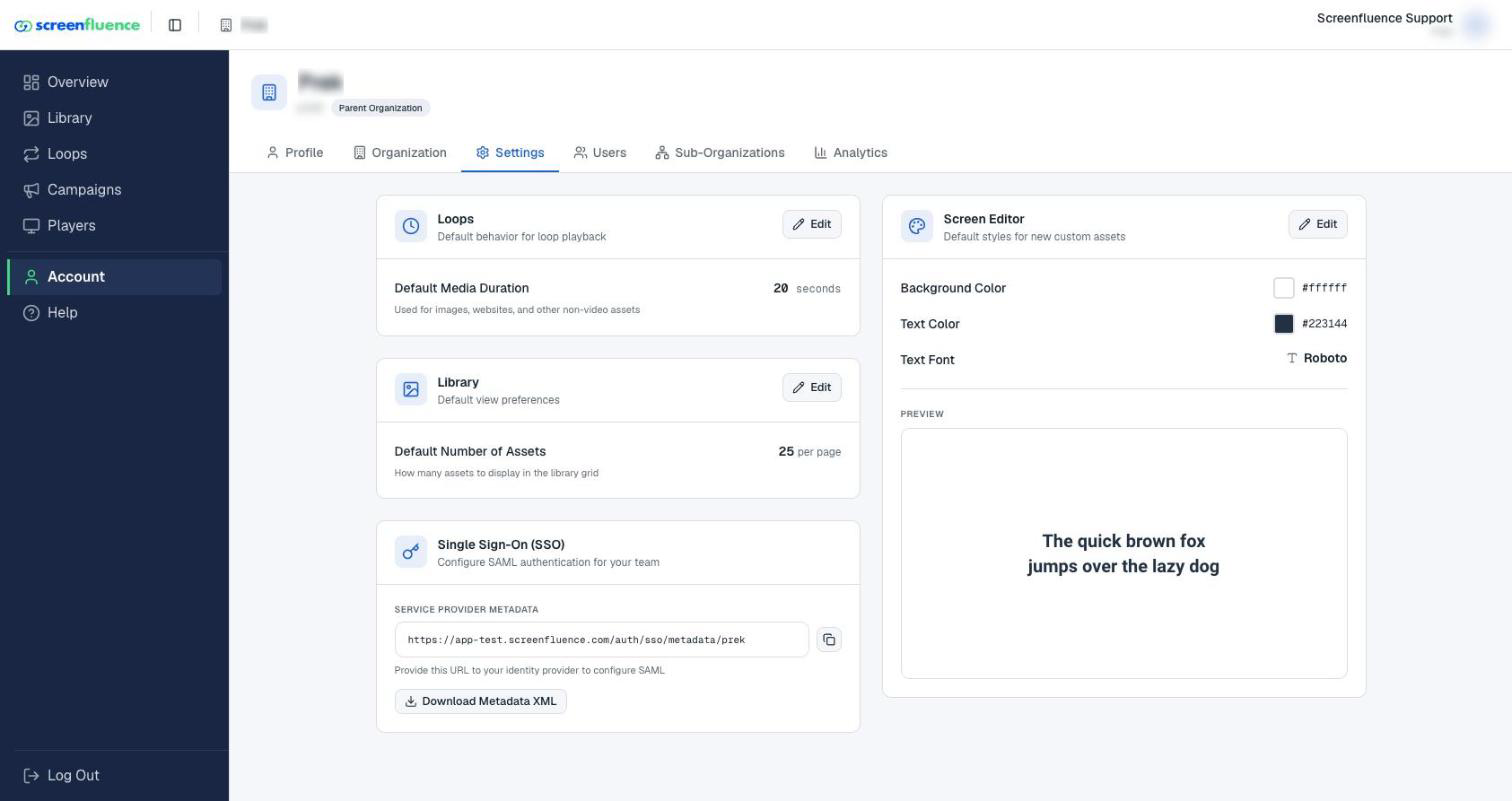
Open Settings in the Account menu:
- Default Media Duration ("Used for images, websites, and other non-video assets") — how long non-video slides play before you customize them. The edit window accepts "Between 1 and 3000 seconds (50 minutes)". (See How to build a loop.)
- Default Number of Assets ("How many assets to display in the library grid") — set Assets per page.
- Single Sign-On (SSO) ("Configure SAML authentication for your team") — Download Metadata XML, or copy the Service Provider Metadata URL ("Provide this URL to your identity provider to configure SAML"; copying confirms "Metadata URL copied to clipboard"). See Enabling Single Sign On.
- Screen Editor Defaults ("Default styles for new custom assets") — pick the Font Family with a Live Preview, then Save Defaults. (See Design a slide with the Screen Editor.)
Organization details (administrators)
The Organization page holds your organization's name, address, and your plan's resource caps (asset and storage limits). Keep the address current — player locations default to it (see Player diagnostics & storage).
Tips & good to know
- Turning on 2FA is the single best account-security step — and administrators can require it per user (see Managing users & roles).
- If most of your slides run the same length, set Default Media Duration once and save yourself a click per slide.
Troubleshooting
- You don't see Settings or Organization: those pages need an administrator role — ask an administrator on your account (see Managing users & roles).
- The interface is in the wrong language: it's per-user — Edit Profile → Language.