
What this covers: How parent organizations work with their sub-organizations — seeing their campaigns and players, and sharing content down to them. A sub-organization is a separate Screenfluence account (say, a franchise location) that sits under your parent account.
Before you start: These features appear only on parent-organization accounts. If your account should be a parent, contact Screenfluence.
See your sub-organizations
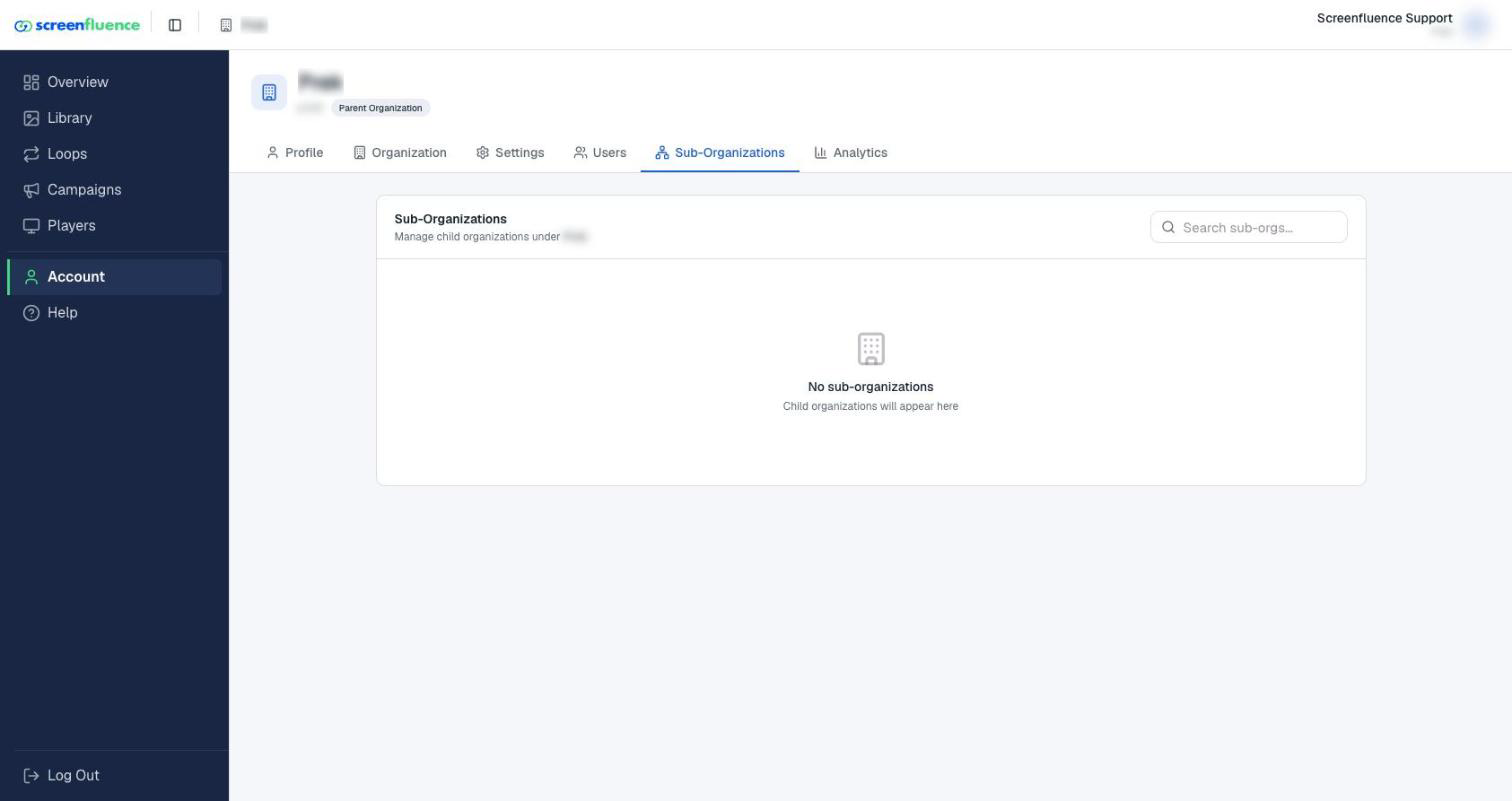
- Click Account in the left sidebar, then open Sub-Organizations ("Manage child organizations…") to see and search the list.
- Elsewhere, the Campaigns page has a Sub-Organizations tab beside My Campaigns, and the Players page a Sub-Orgs tab — so you can check every location's content and screens from one place (see Checking player status).
Share a content folder down
Sharing puts a folder of your assets in your sub-organizations' Libraries — the fast way to distribute brand-approved content:
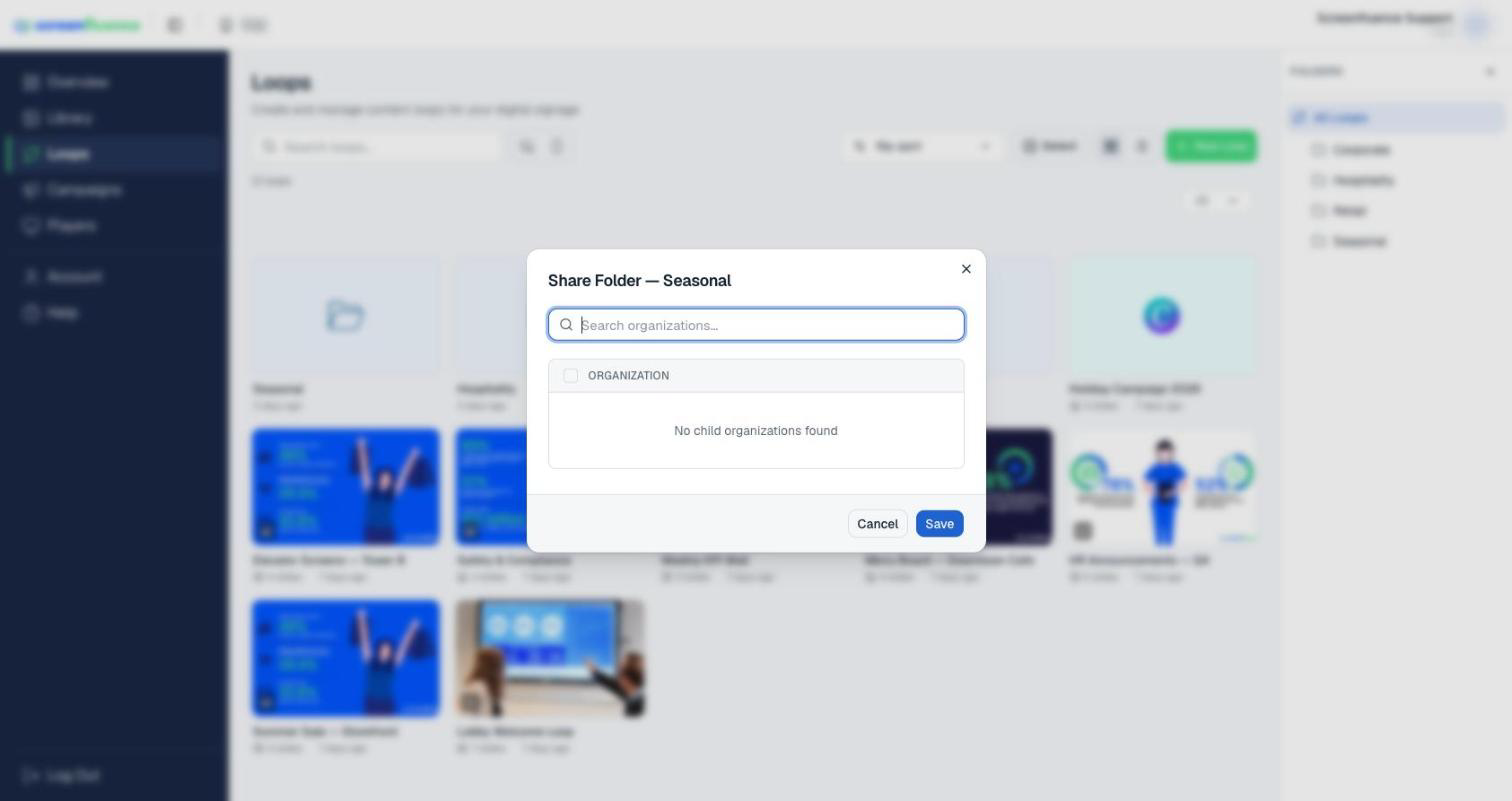
- In your Library, open the folder's menu and choose Share Folder.
- The Share Folder — (folder name) window lists your child organizations with a search box — tick the ones that should receive it (or select all).
- Save.
Sub-organizations see the shared folder in their Library. It's read-only for them — they can use the assets in their loops but can't edit or delete them ("This folder belongs to your parent organization.").
Share a campaign down
Campaigns can be shared the same way: on the Campaigns page, use a campaign's Share action — the Share Campaign — (name) window works just like folder sharing. Shared campaigns carry a share icon and a "Shared campaign" tooltip in your sub-organizations' lists.
Tips & good to know
- Share a folder once and keep dropping new assets into it — additions flow to the sub-organizations automatically.
- Sub-organization roll-ups also appear in your analytics (see Organization analytics).
Troubleshooting
- A sub-organization can't edit a shared asset: that's by design — shared content is read-only downstream. They can copy content into their own Library if they need a local variant.
- You don't see any of these tabs or actions: your account isn't set up as a parent organization — contact Screenfluence.