
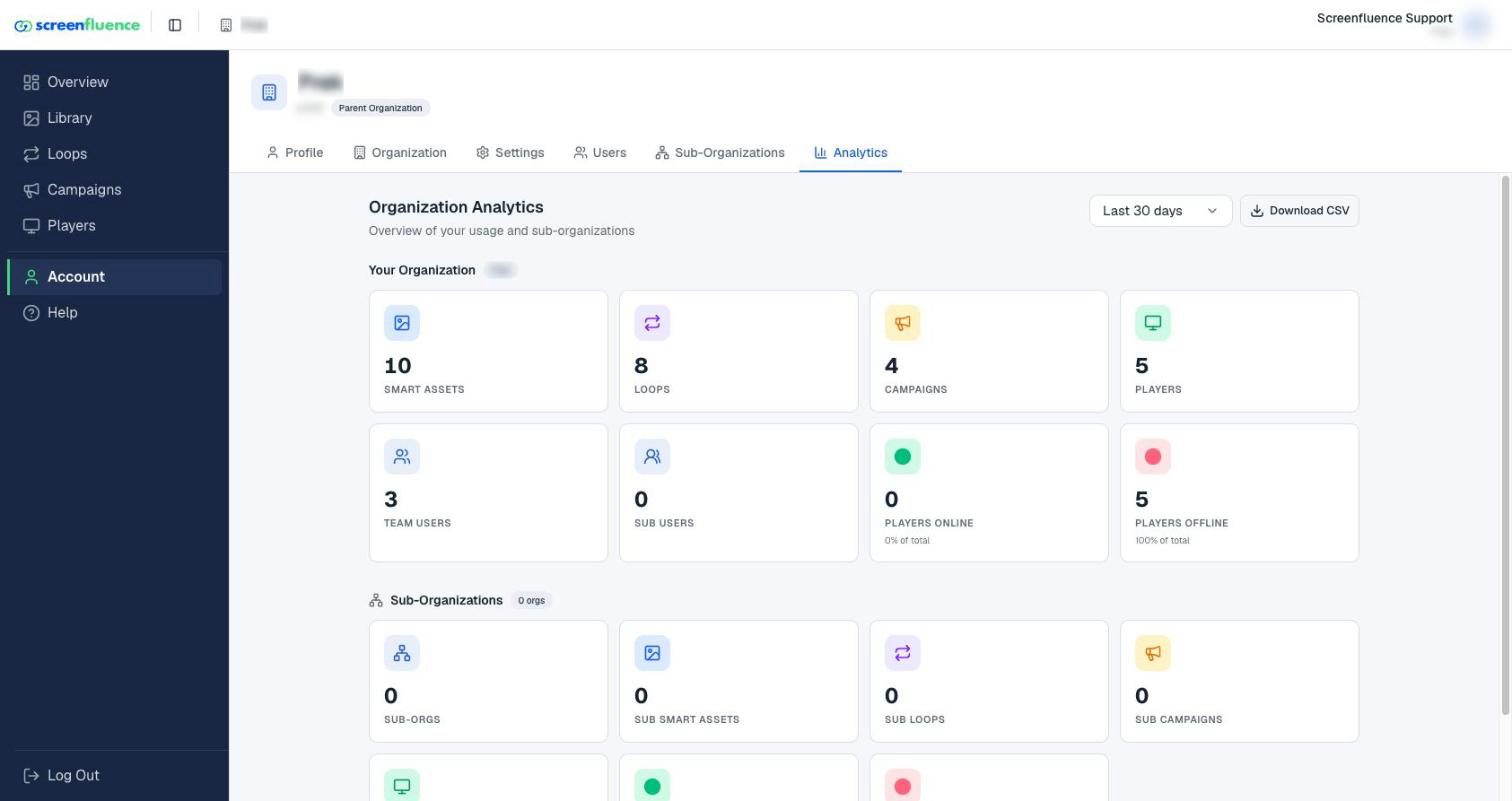
What this covers: The Analytics page — a numbers-at-a-glance view of your whole organization, with a CSV export for reporting.
Before you start: An administrator login (the Account area is admin-only).
Steps
- Click Account in the left sidebar, then open Analytics.
- Pick the period: Last 30 days or All time.
- Read the cards: Smart Assets, Loops, Campaigns, Players, Team Users, and Sub Users, with Players Online / Players Offline for fleet health. Parent organizations also get per-sub-organization roll-ups.
- Click Download CSV to export the report for the selected period.
Tips & good to know
- Players Offline is the number to watch — anything above zero deserves a look at the Players page (see Checking player status).
- The CSV is the quick answer to "how much are we actually using this?" for renewals, rollouts, and reporting up.
Troubleshooting
- You don't see the sub-organization cards: they only appear for parent-organization accounts (see Sub-organizations & shared folders).
- You can't open Analytics at all: it's in the admin-only Account area — ask an administrator on your account.